What is DialogSphere
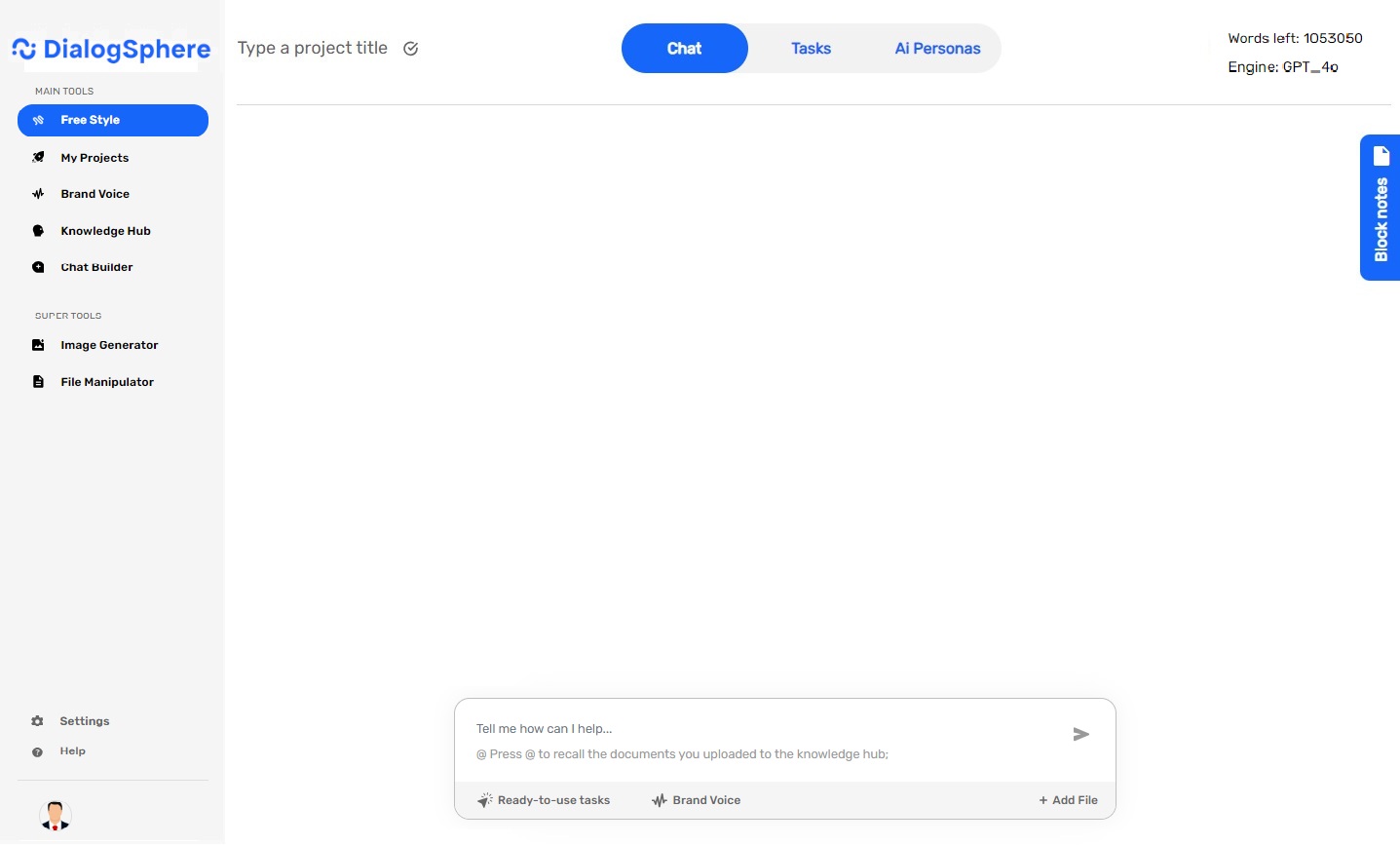
DialogSphere is a state-of-the-art AI platform designed for professionals. DialogSphere seamlessly integrates advanced AI technology with a user-friendly interface, aiming to enhance productivity by providing solutions tailored to specific work needs. As a leader in Generative AI advancements, DialogSphere offers a range of functionalities, from free to premium, all designed to ensure a smooth and personalized user experience.
Free Style
Free Style allows for dynamic interactions with DialogSphere, remembering previous conversations. It offers over 100 predefined tasks suitable for various business contexts such as HR and Finance. Additionally, it includes various AI personas, each specializing in different fields to assist in creating customized content, supported by a Chatbot.
My Projects
This section allows you to view and manage your existing projects.
Brand Voice
This section helps you develop and manage your brand’s unique ‘voice’, which includes the tone, style, and values your brand communicates.
Knowledge Hub
Detailed features
Free Style
Top Bar Menu:
- Chat: Engage in fluid conversations with DialogSphere, recalling previous exchanges.
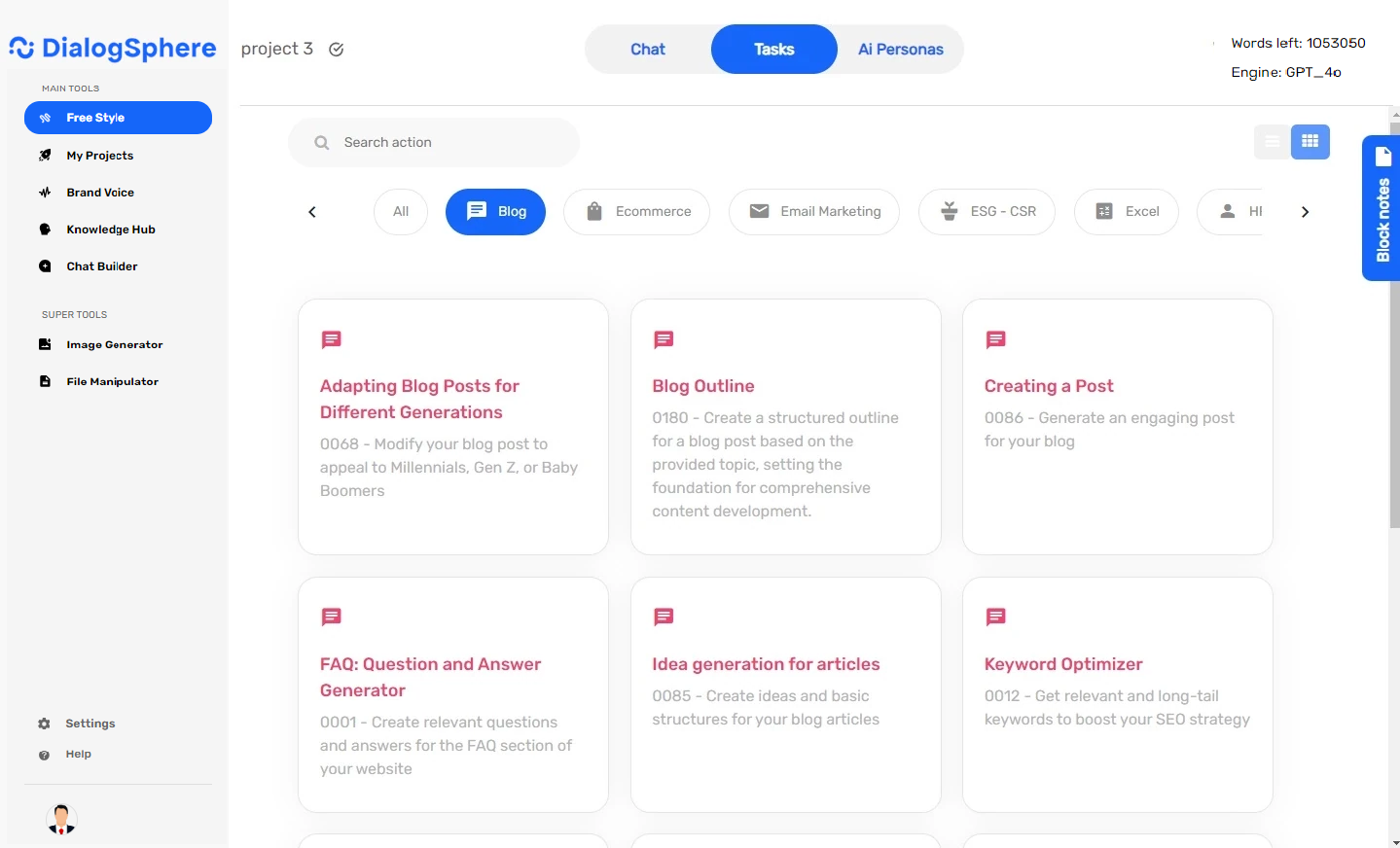
- Tasks: Access over 100 ready-to-use predefined tasks for various business contexts such as HR, Legal, Finance, Sales, Marketing, etc.
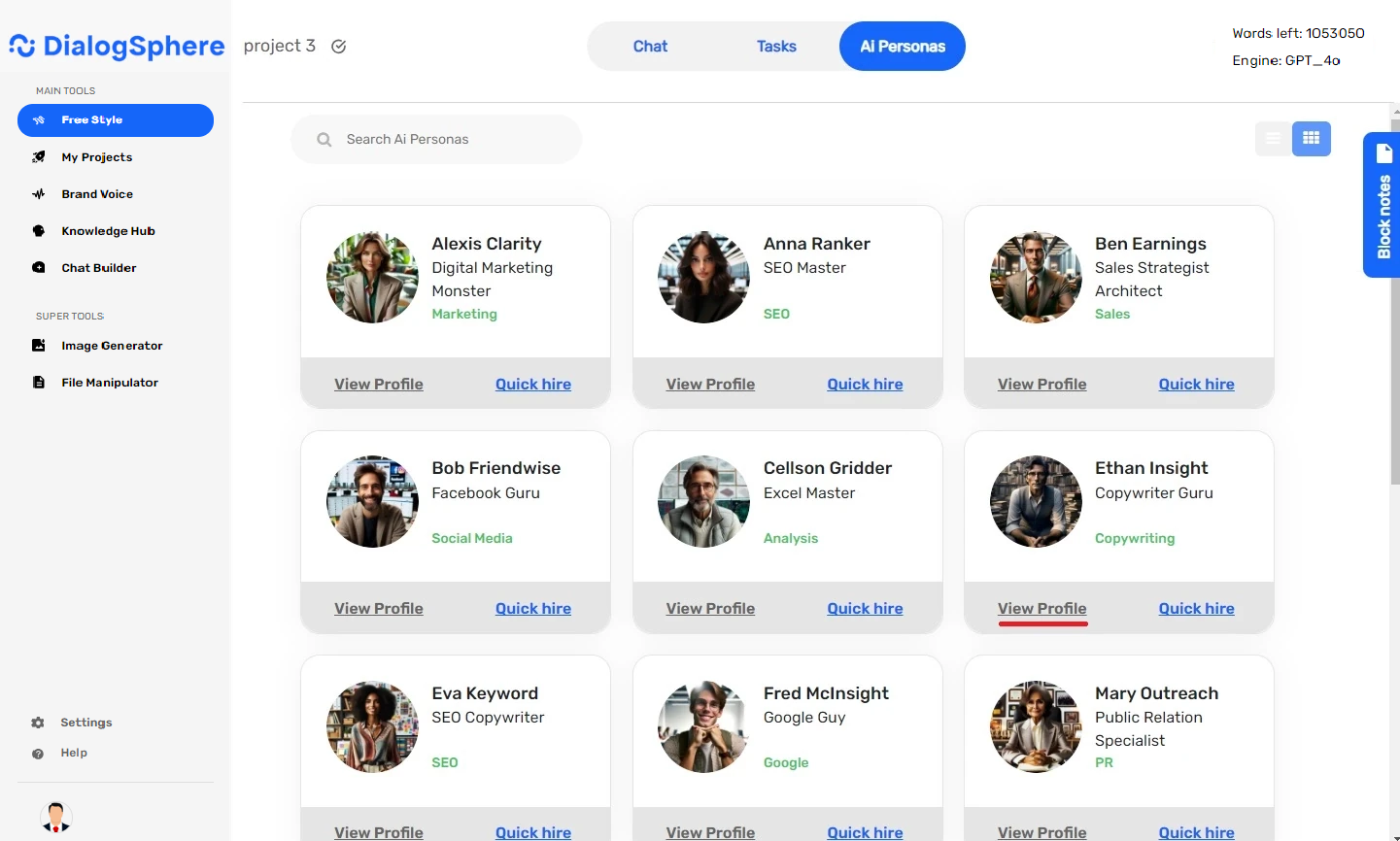
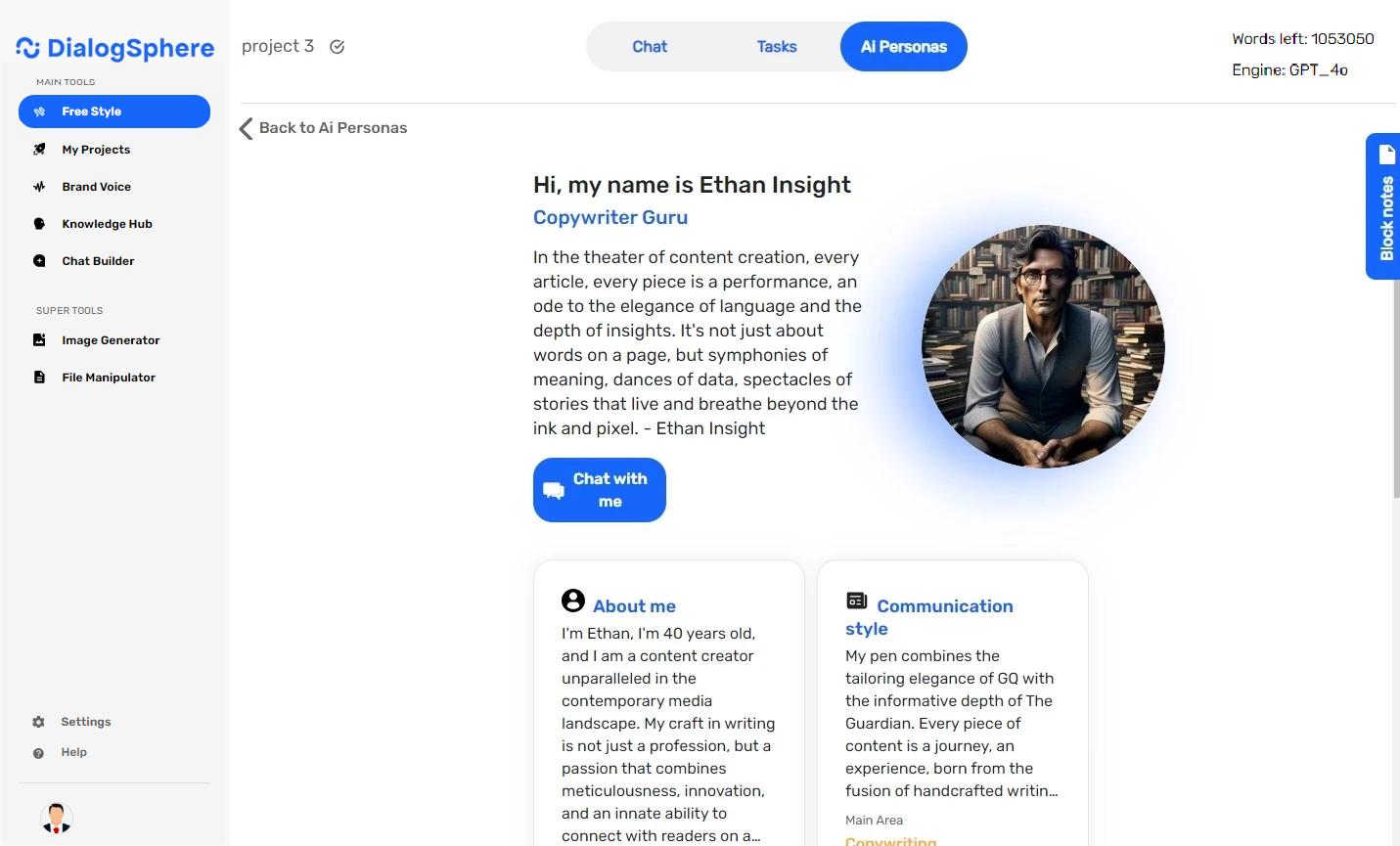
- AI Personas: Utilize various AI personas specialized in different fields for tailored content creation.
Chat
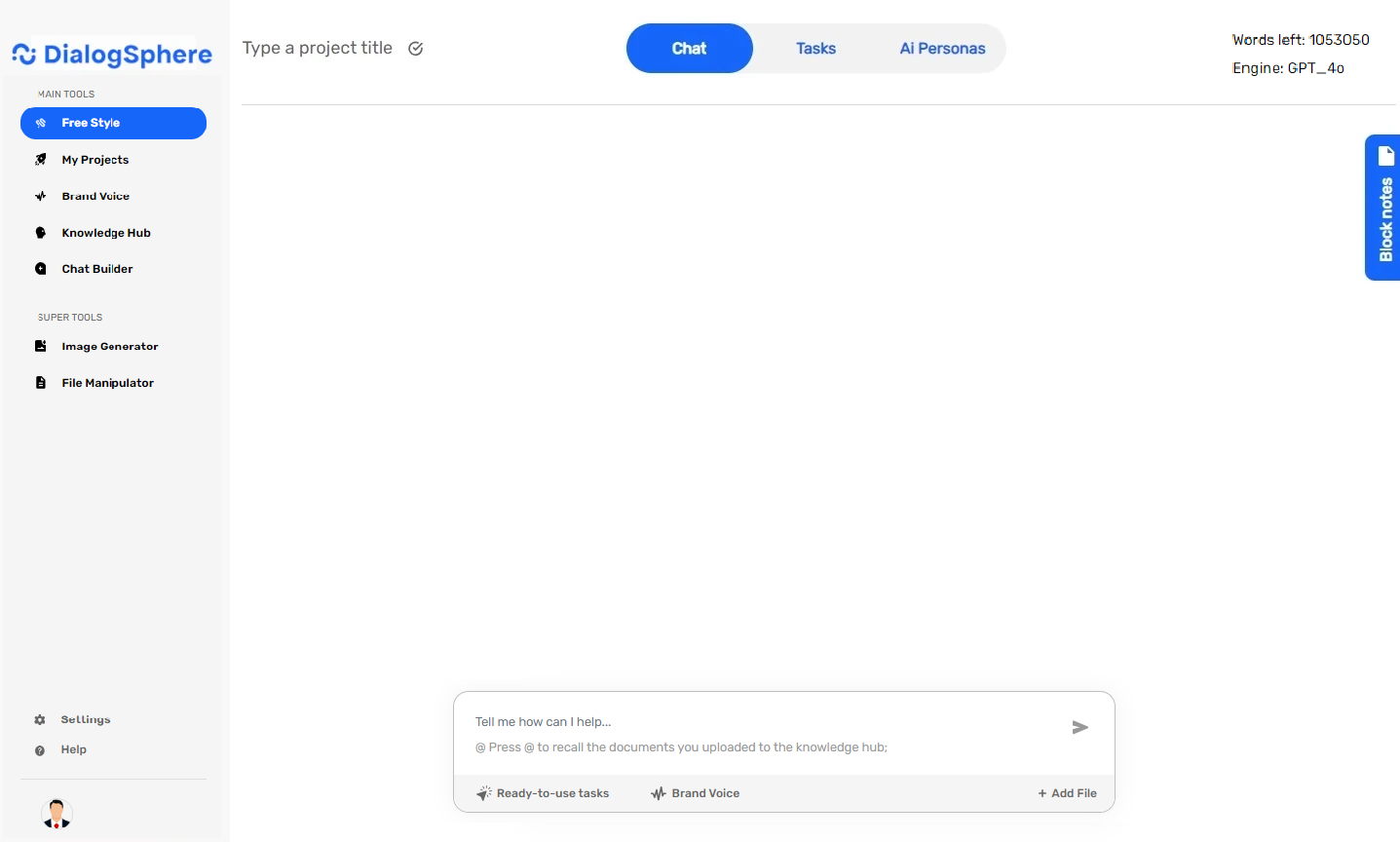
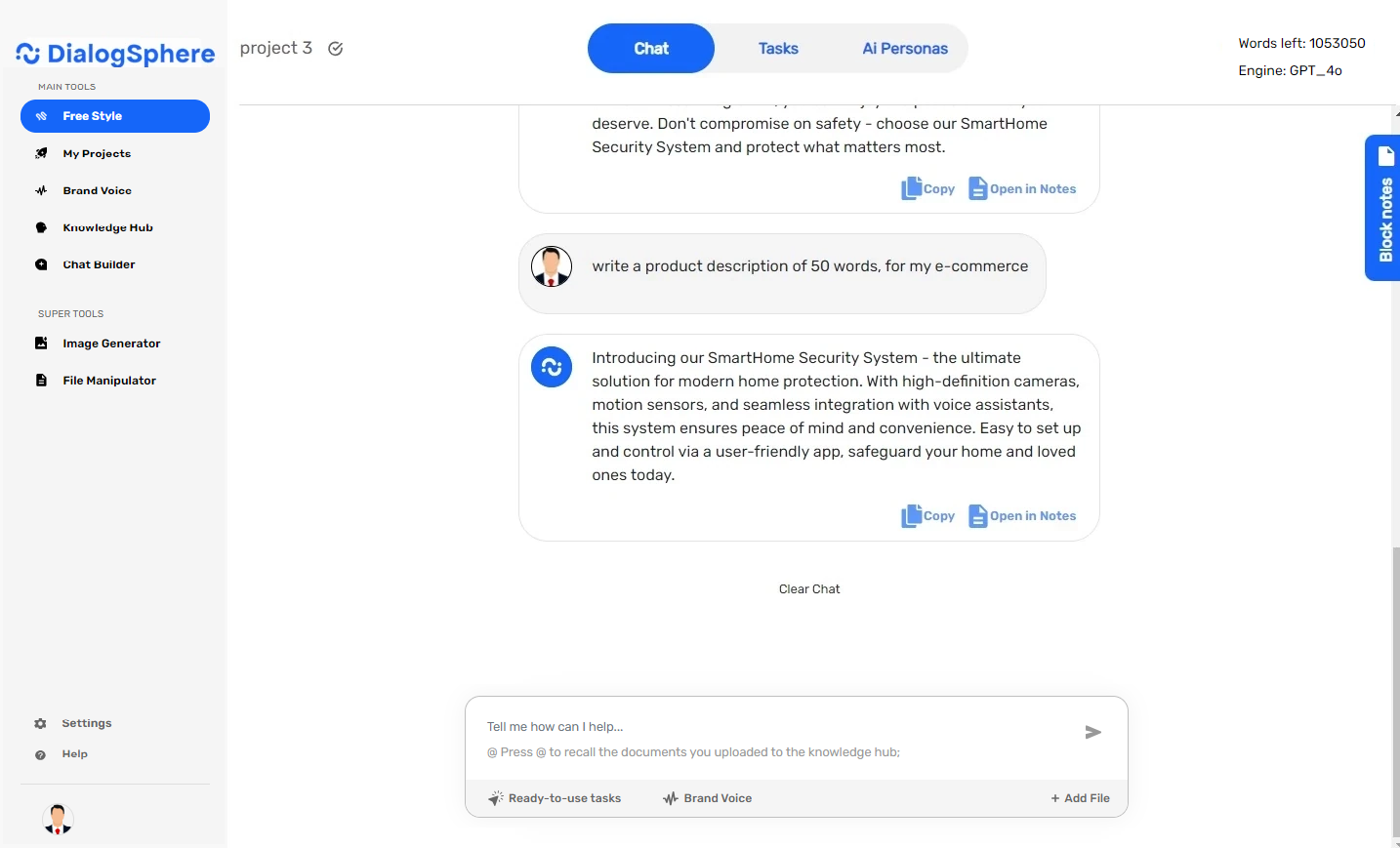
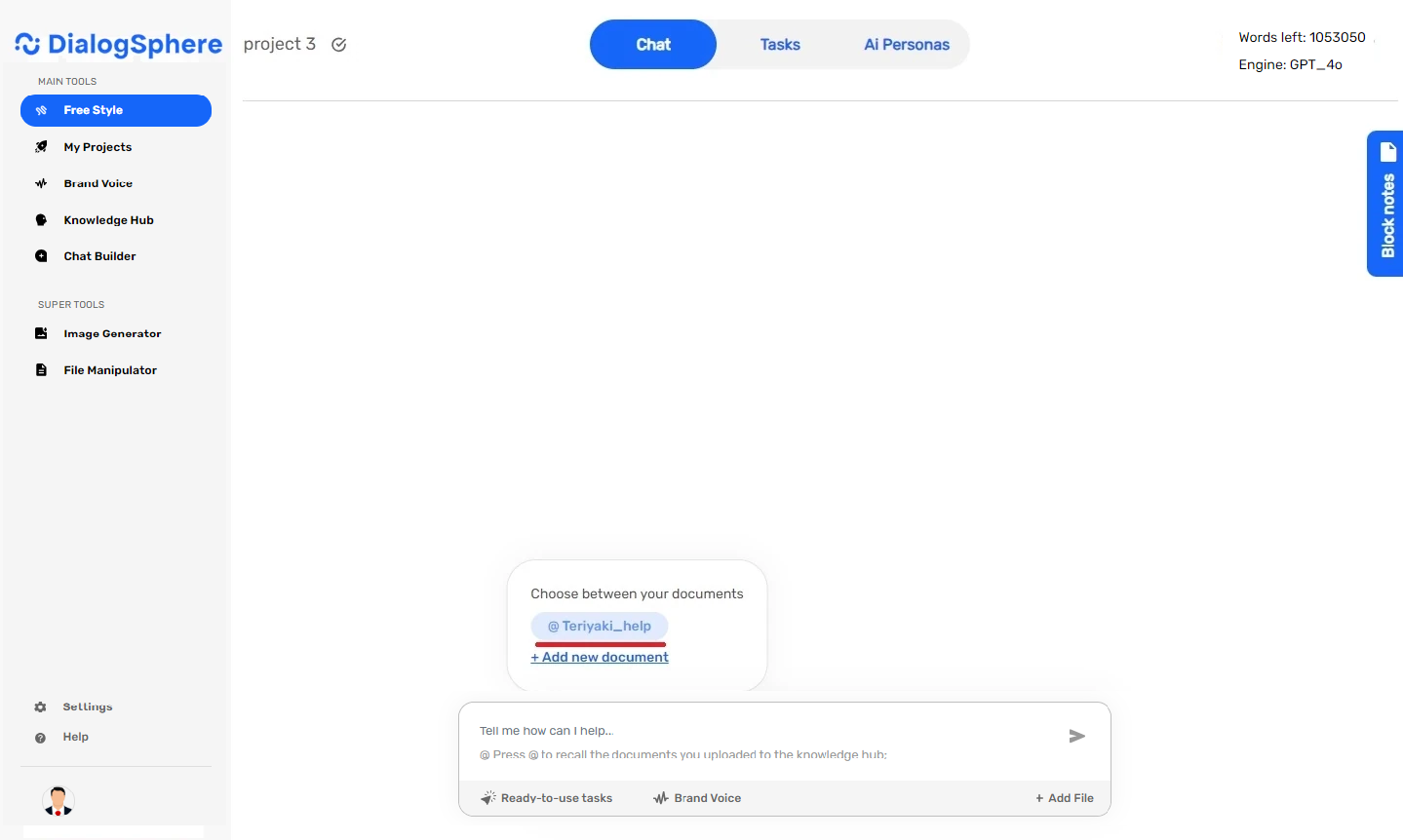
The Chat feature enables dynamic conversations with DialogSphere, recalling past interactions. You can:
– Engage in direct, interactive conversations to discuss a wide range of topics and get assistance with various tasks through a user-friendly interface.
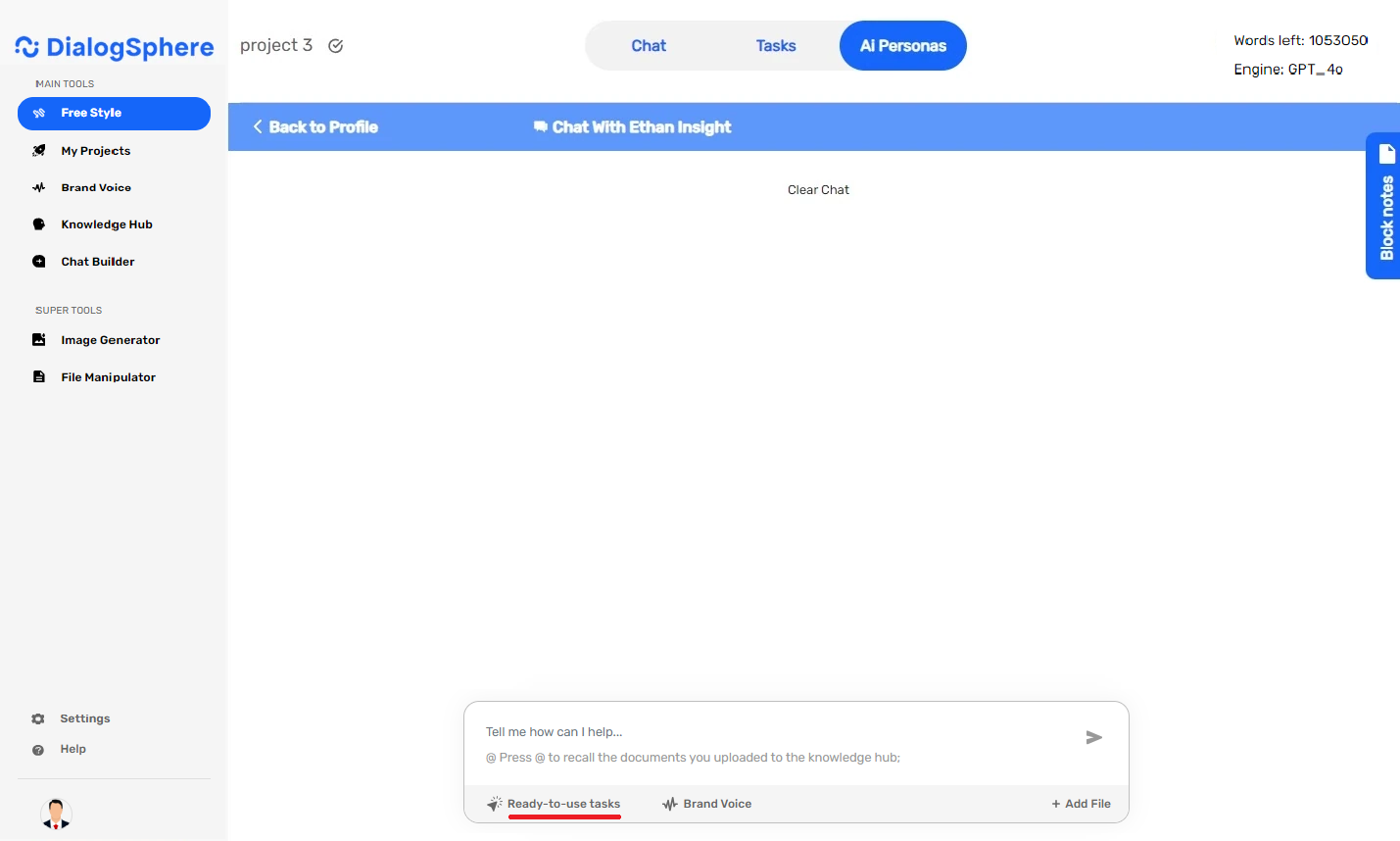
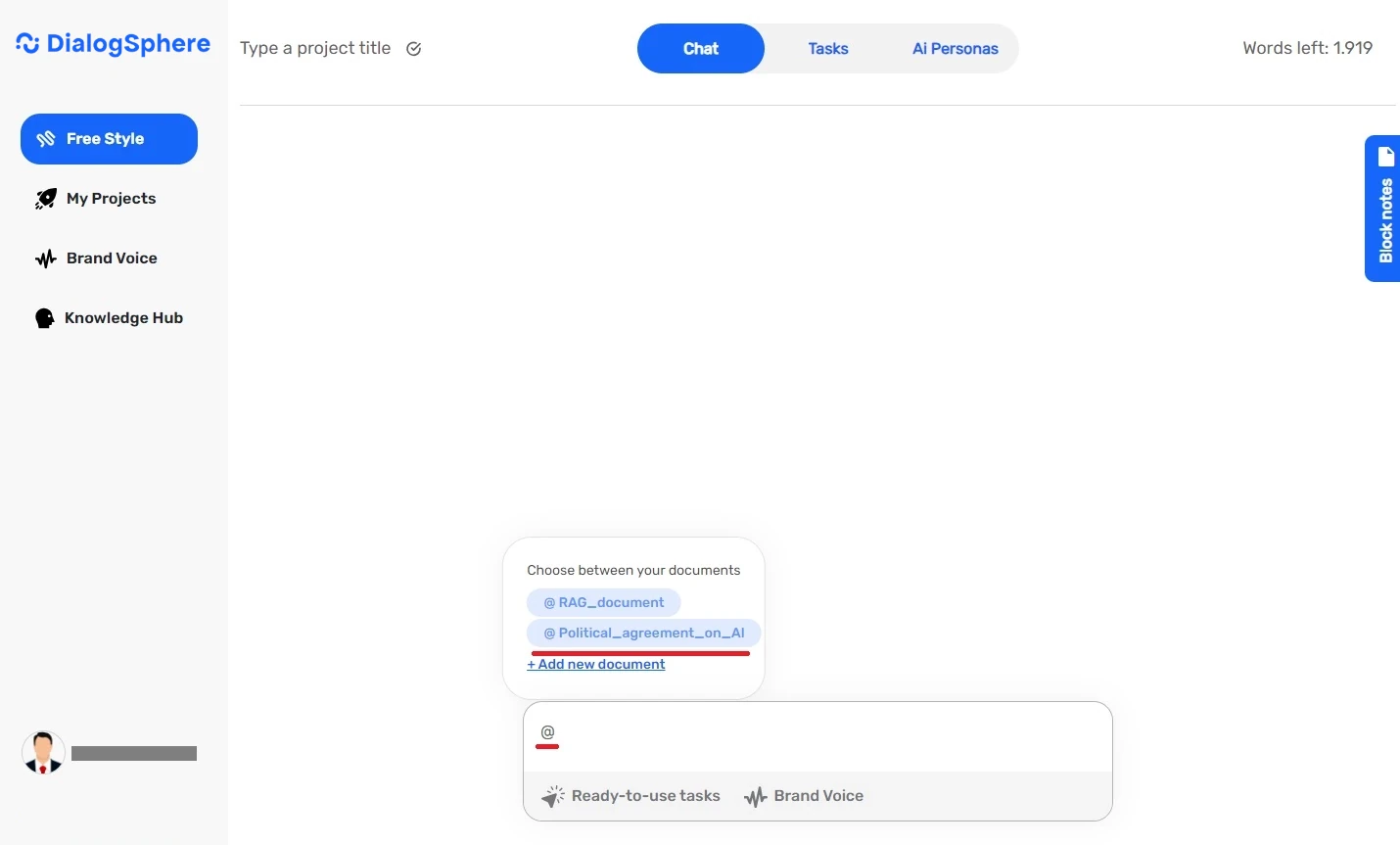
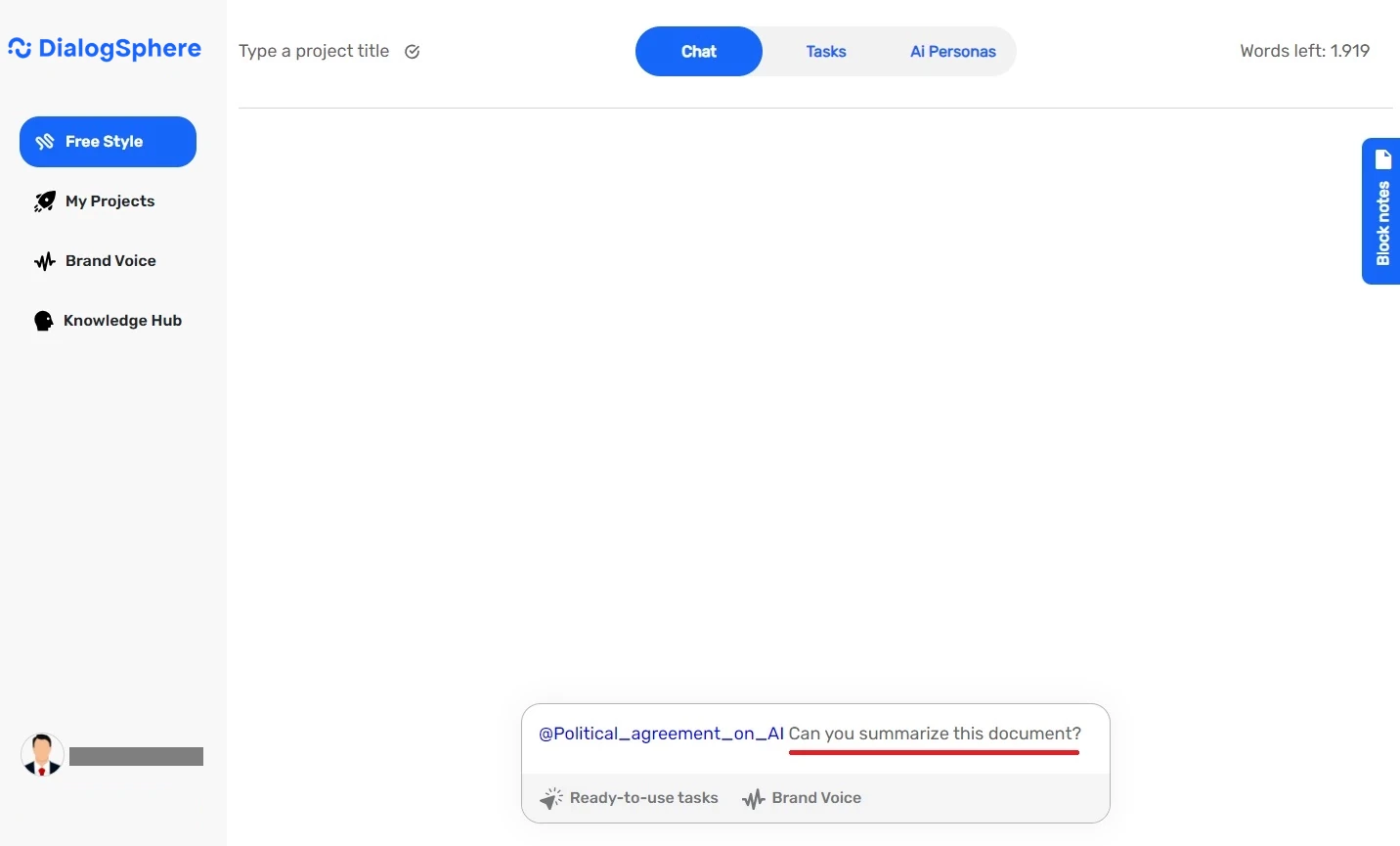
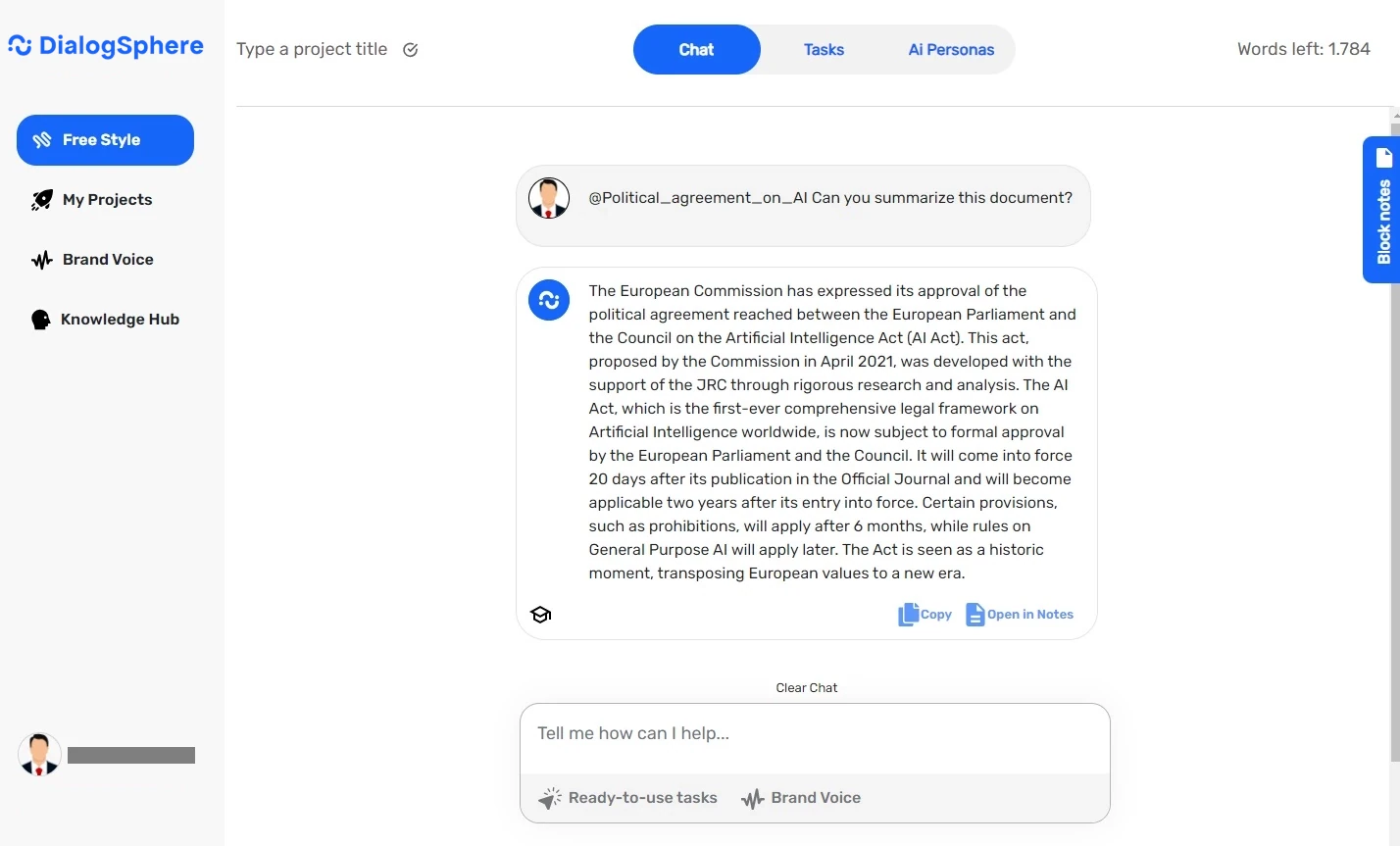
– Query documents previously uploaded in the Knowledge Hub to request summaries or specific information. (You can recall the document in the chat by entering the “@” symbol and selecting the one you wish to recall.)
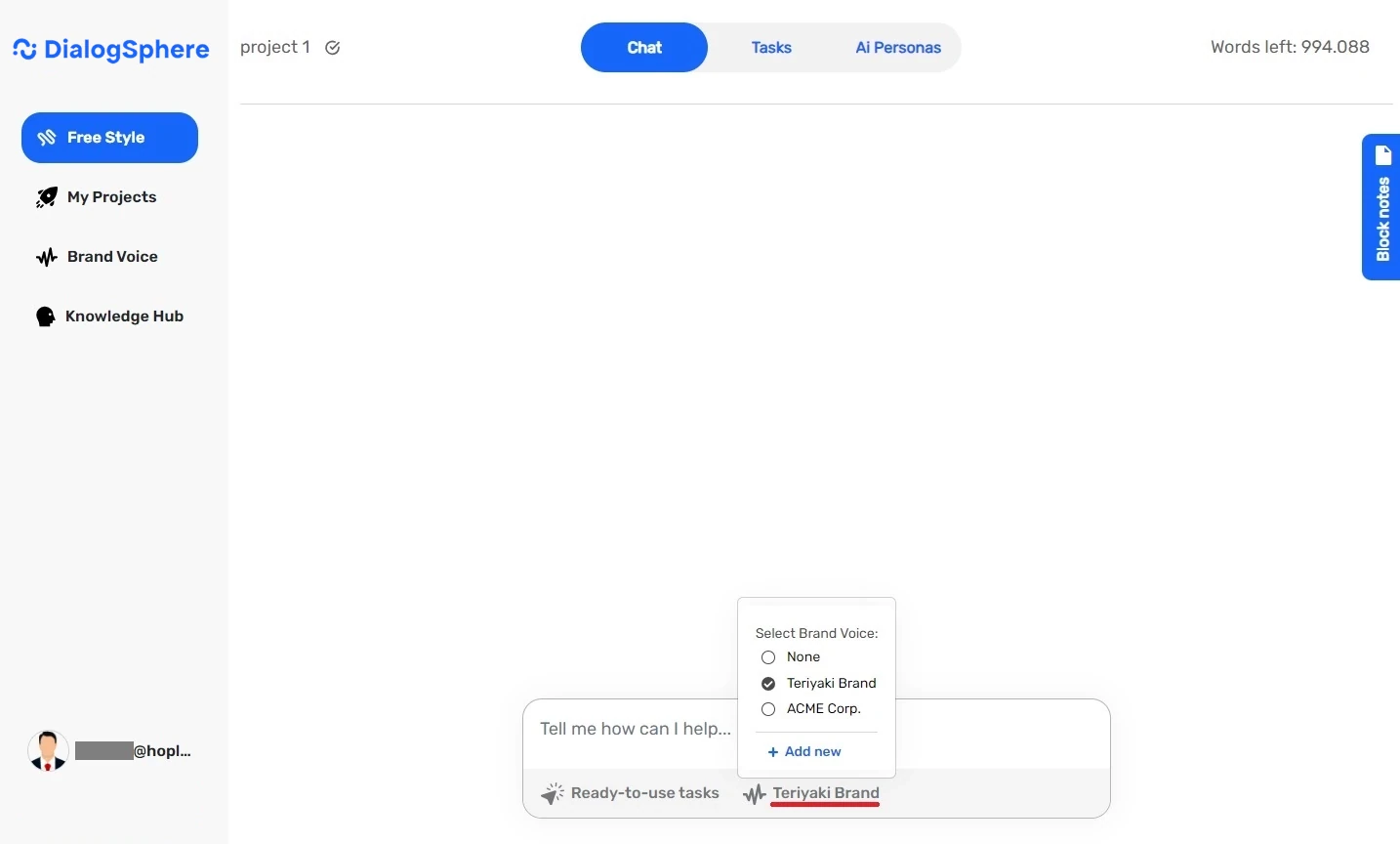
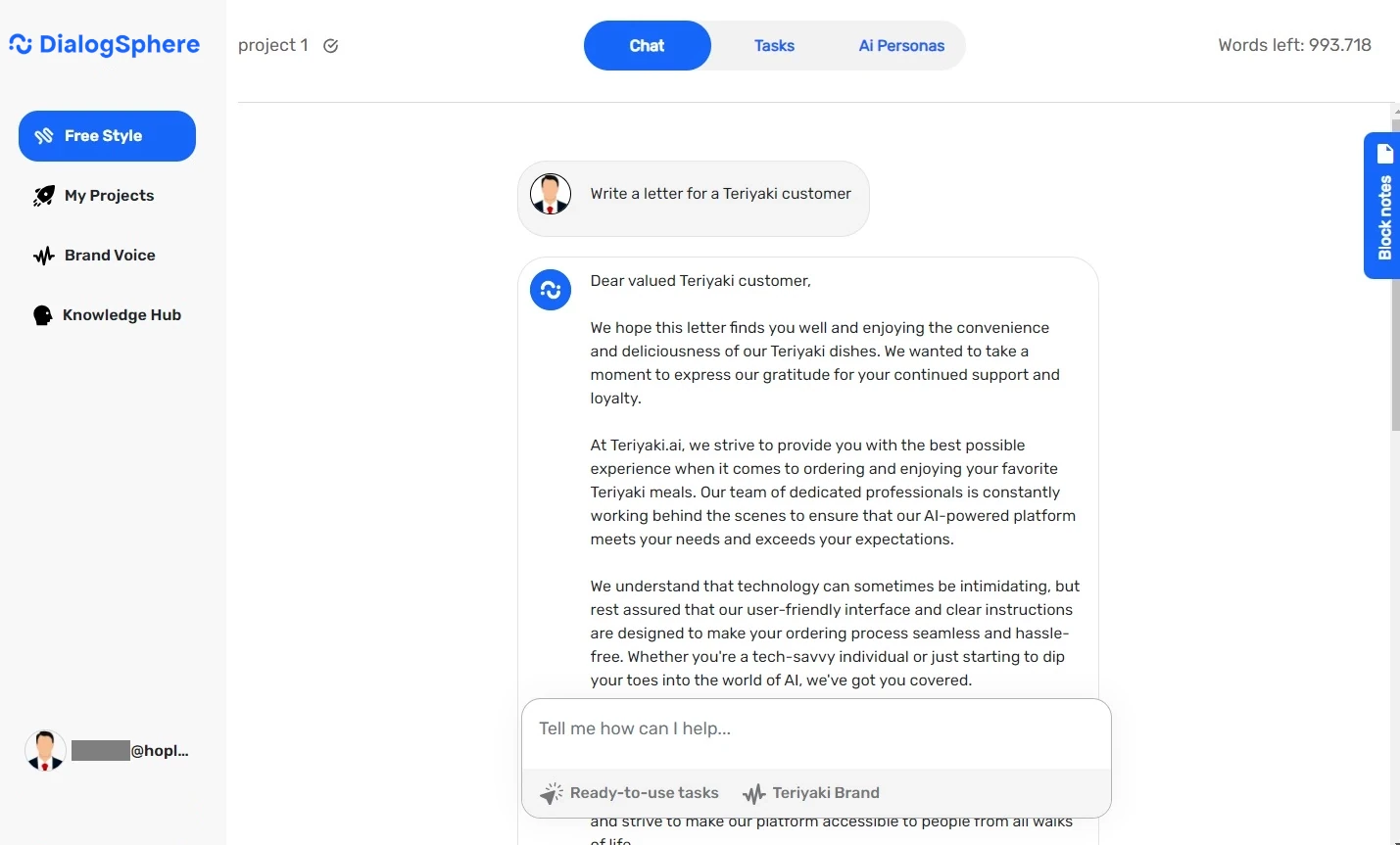
– Use a specific Brand Voice previously uploaded in the Brand Voice section to create brand-specific content.
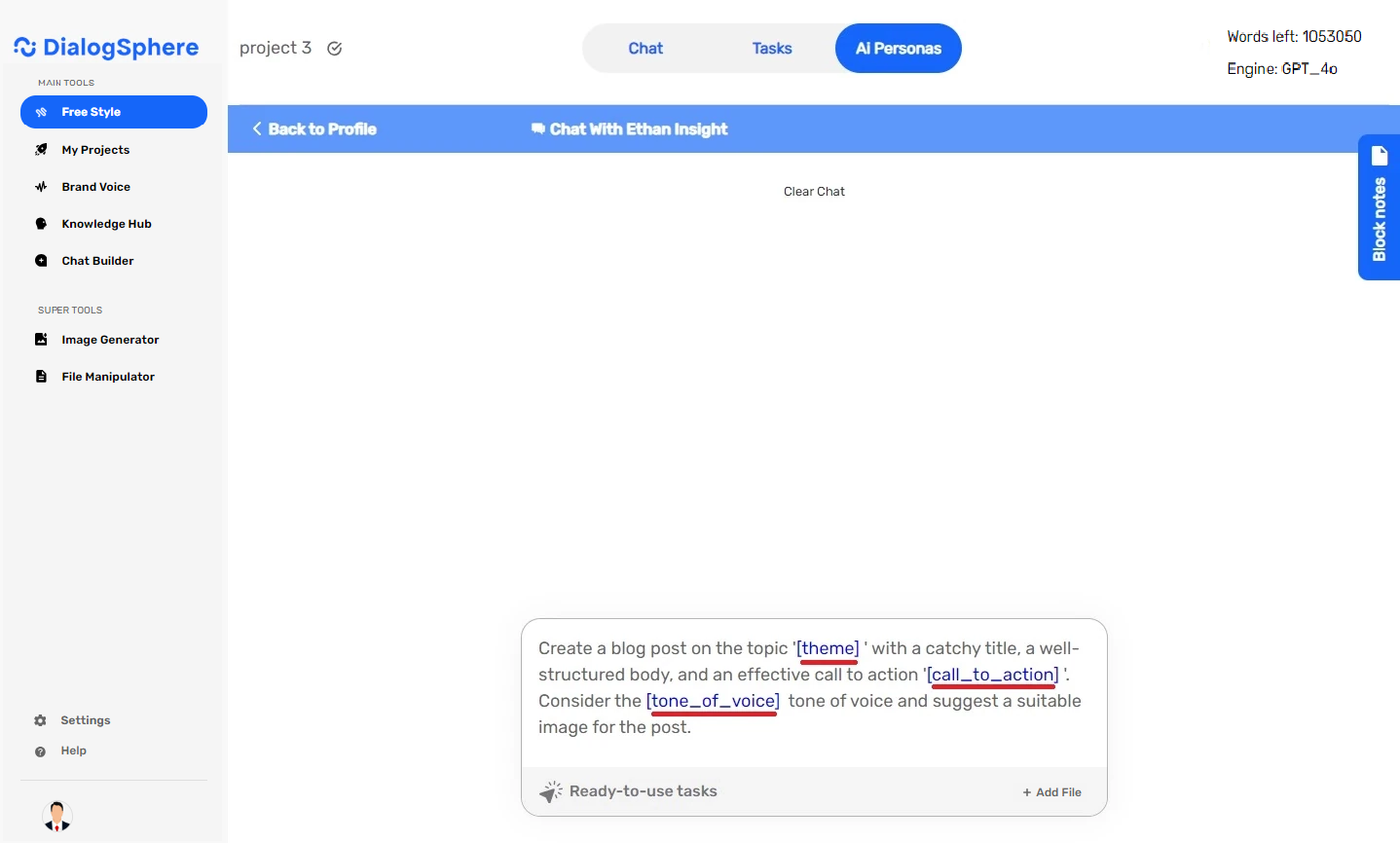
– Select a specific Ready-to-use task by entering the required data.
Tasks
We offer over 100 ready-to-use prompts on a user-friendly interface, customizable with your data. Search and filter options include:
– A search bar for specific tasks or content templates.
– Filter tags to categorize tasks or content suggestions.
Using Tasks:
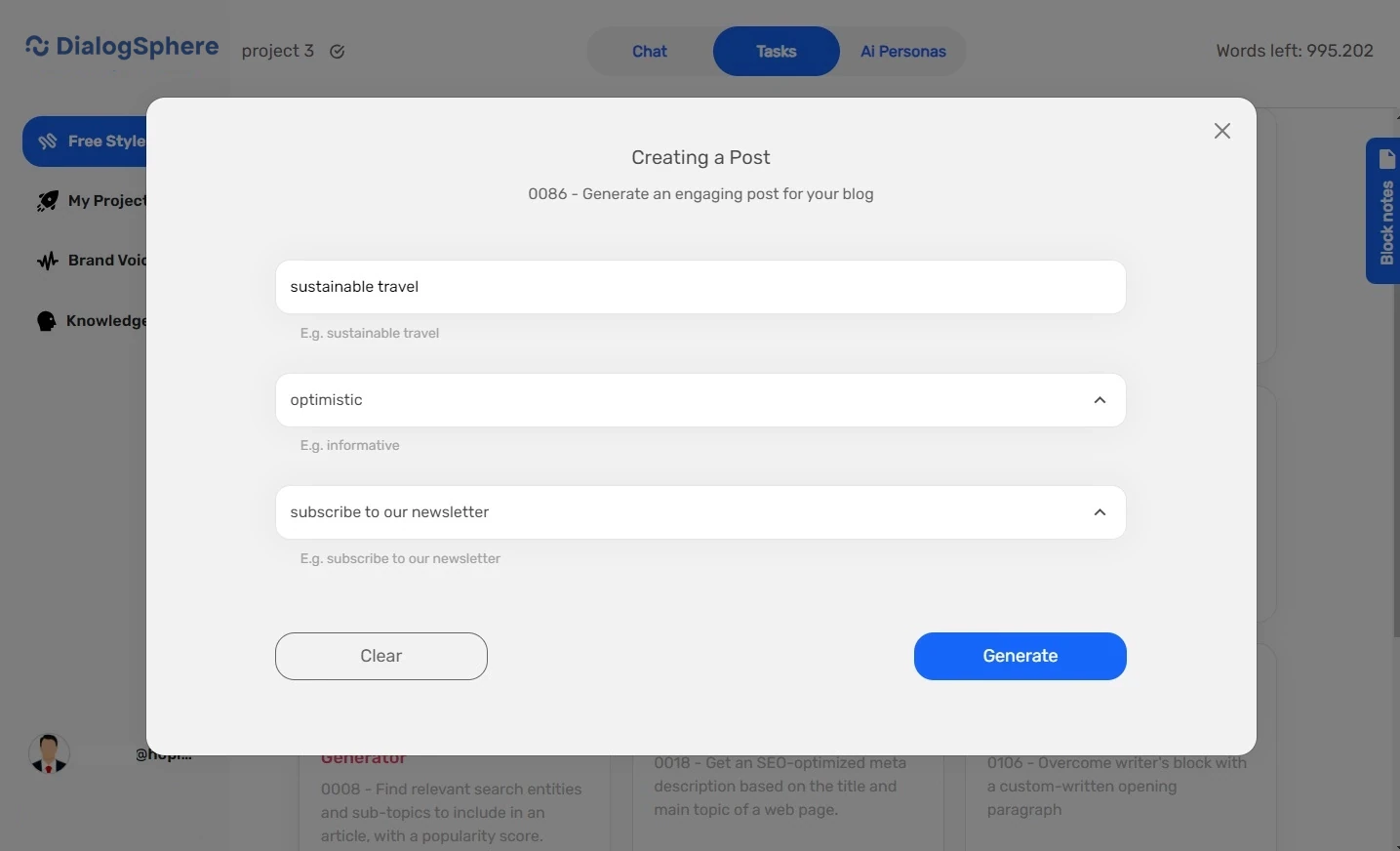
- Select the task (e.g., Creating a Post).
- Enter the required data (e.g., Blog post topic, Tone of voice, Call to action).
- Click Generate and wait for the result.
AI Personas
Hire specialized AI personas for customized content creation, designed to match the voice and tone your brand needs.
Using AI Personas:
- Click on Free Style > AI Personas in the top menu.
- Hire the persona needed from categories like Analysis, Copywriting, Corporate, E-commerce, etc.
You can also use the ready-to-use prompts when interacting with the AI Personas.
Block notes
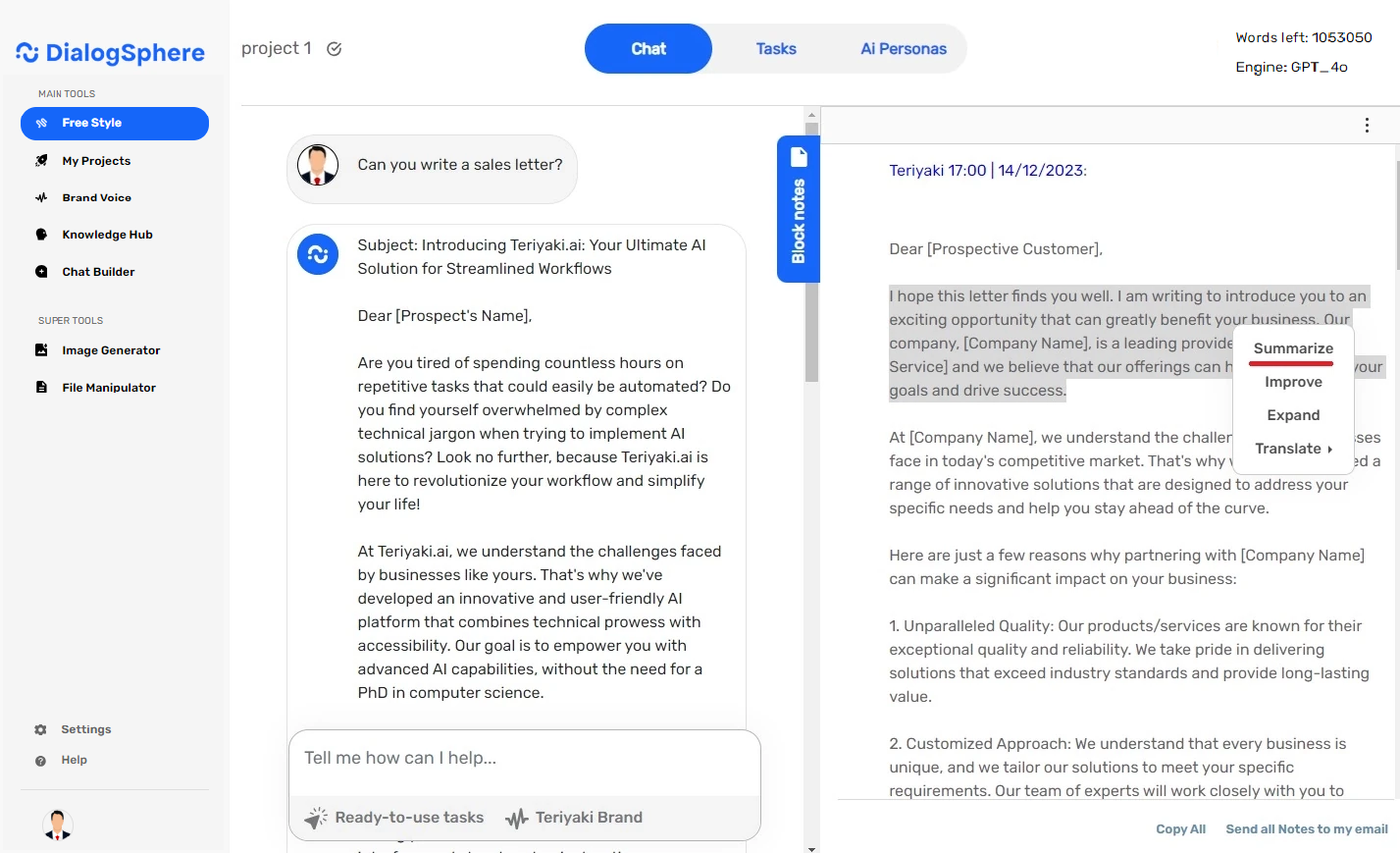
The Block Notes tool allows you to take, edit, format, copy, and track important information during a chat with Teriyaki.ai. Notes are saved in the My Project section for future review or modification.
By selecting all the text or a portion and right-clicking, you can continue to process the text with the help of AI:
– Summarize
– Improve
– Expand
– Translate
My Project
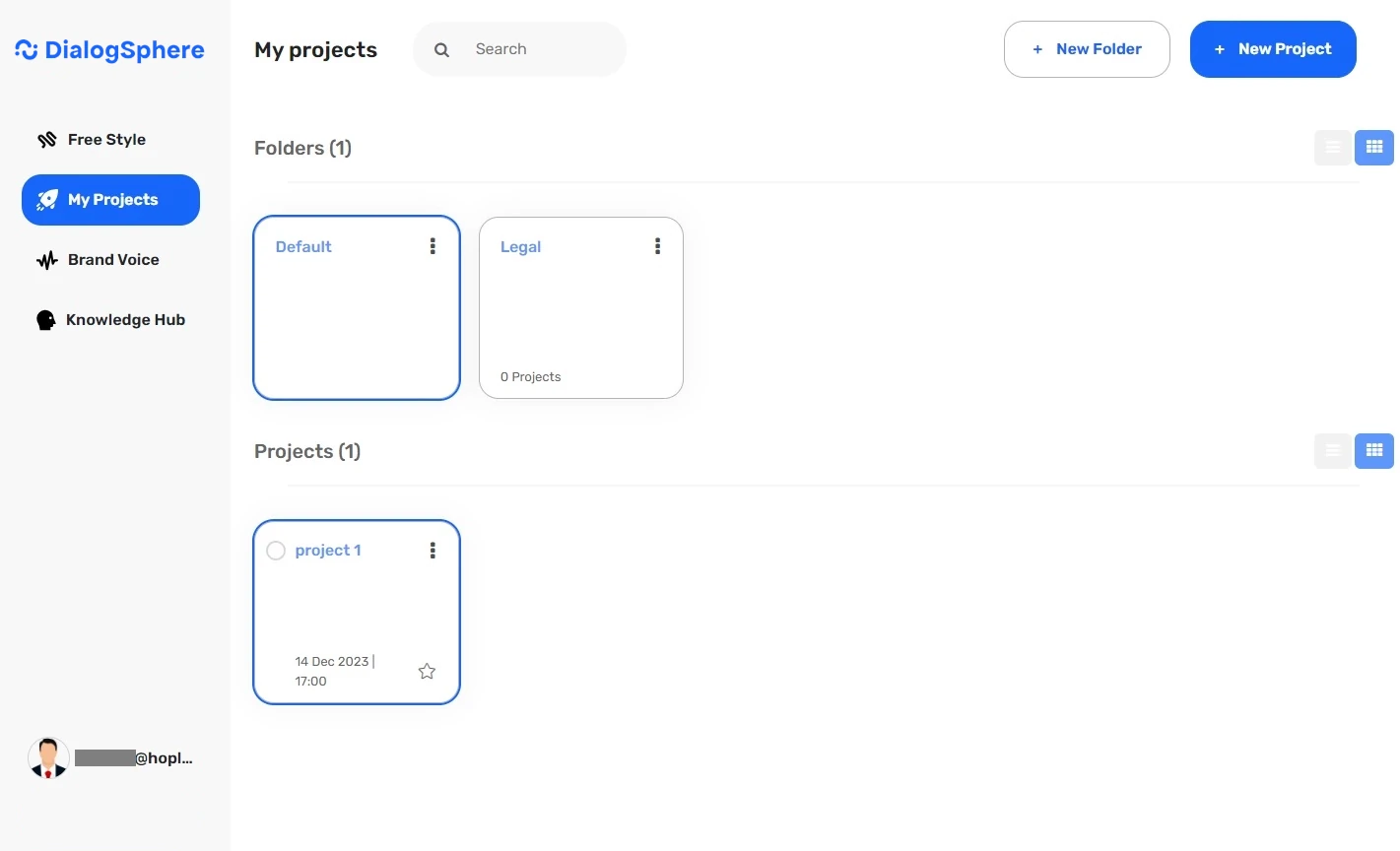
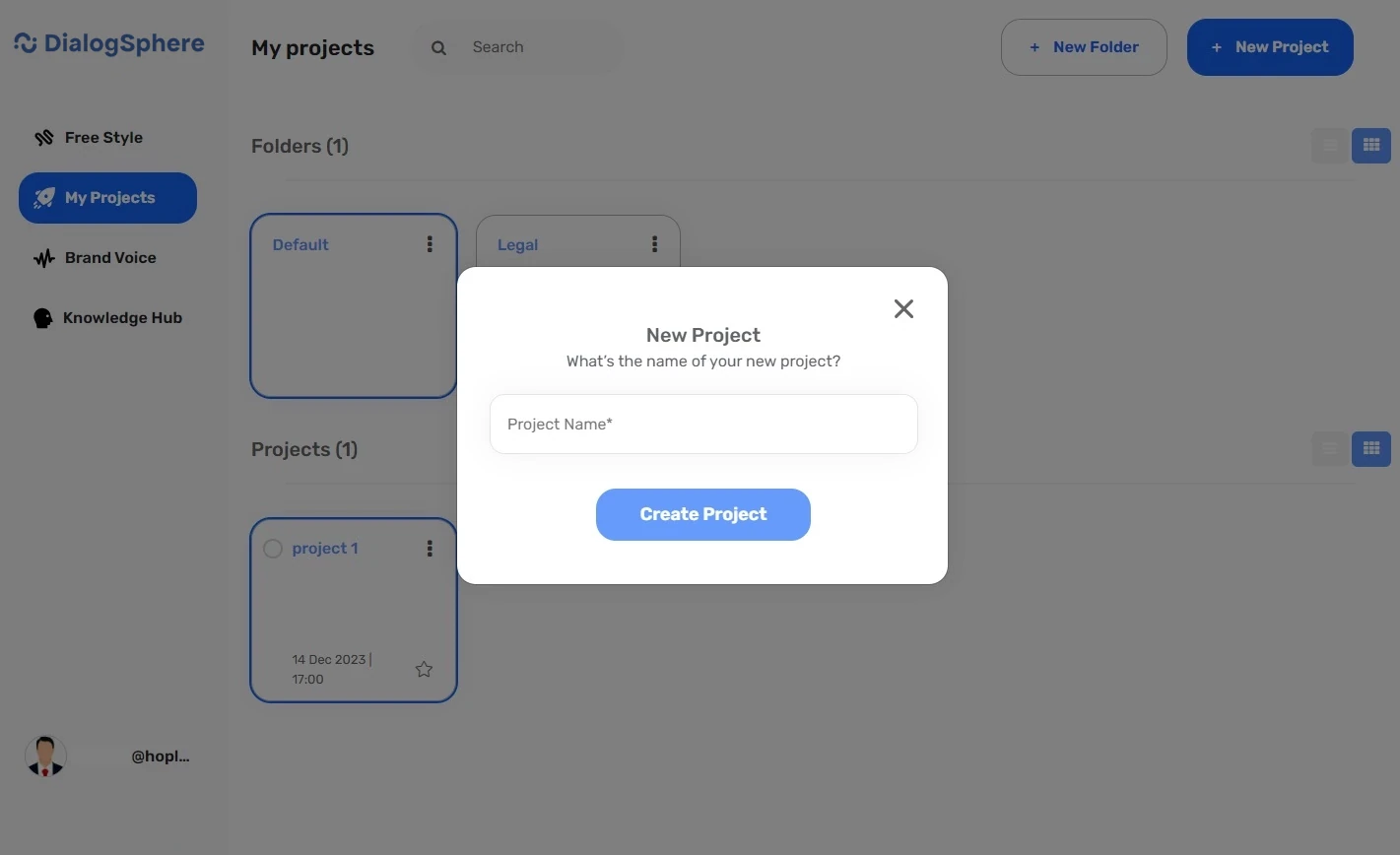
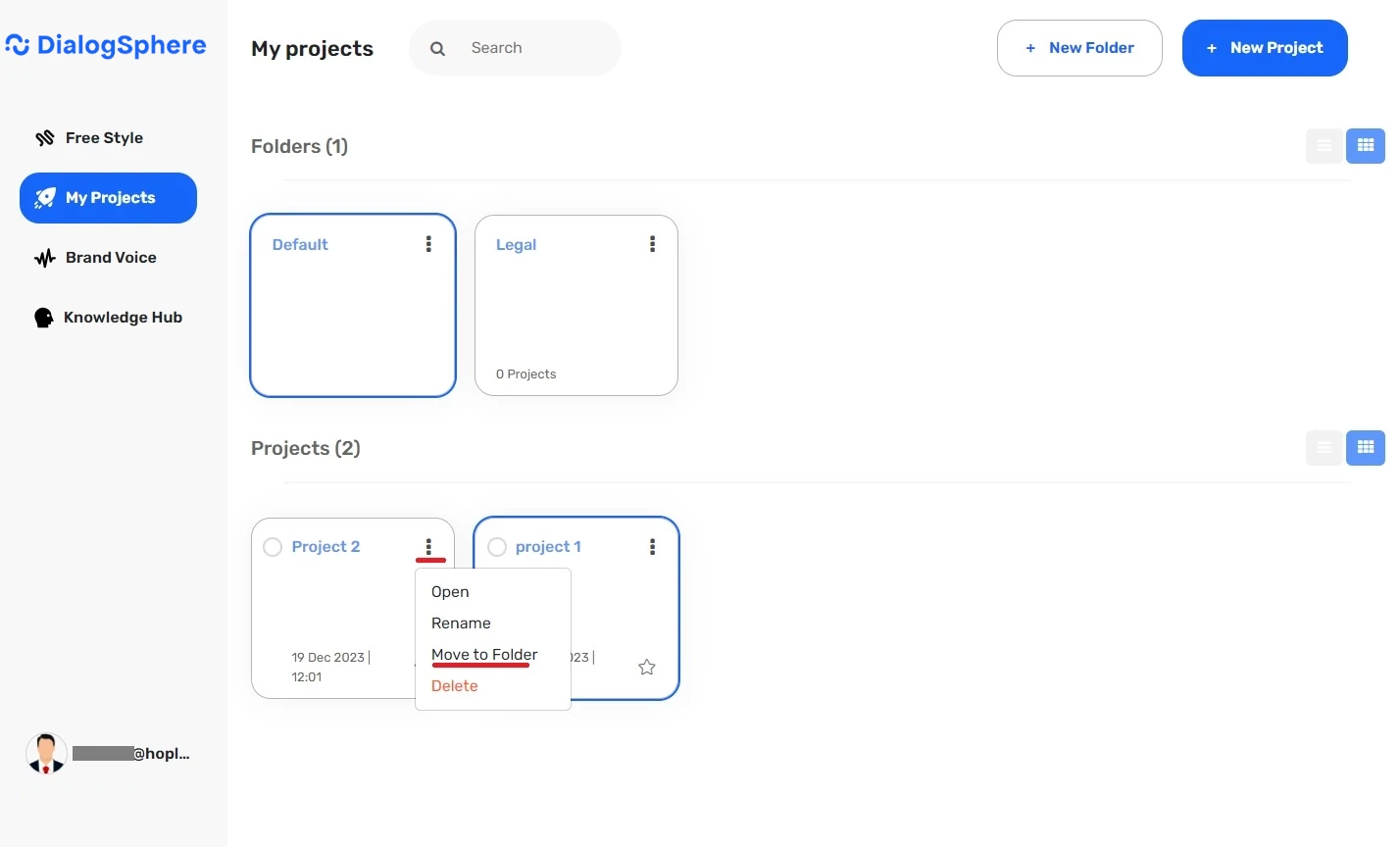
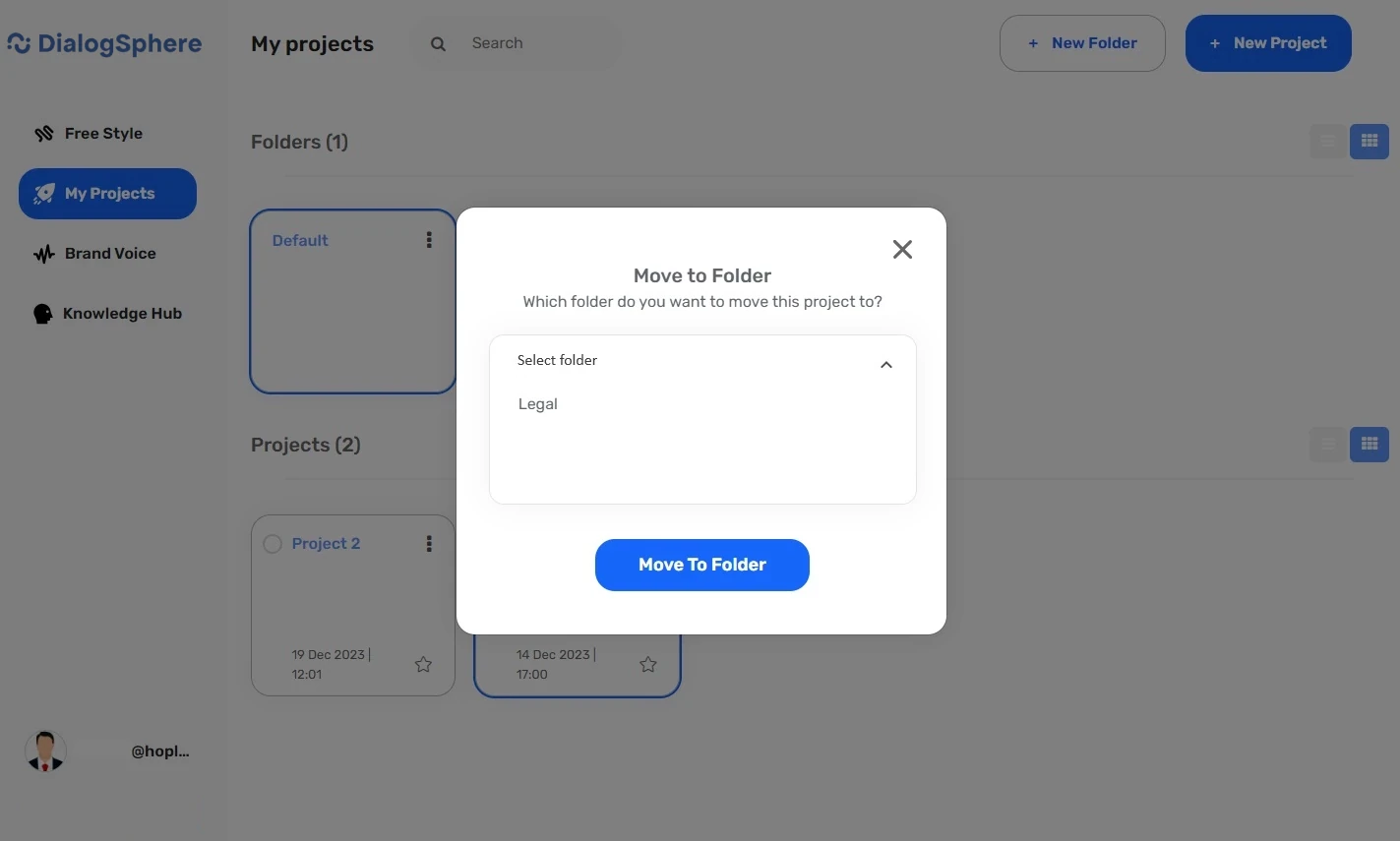
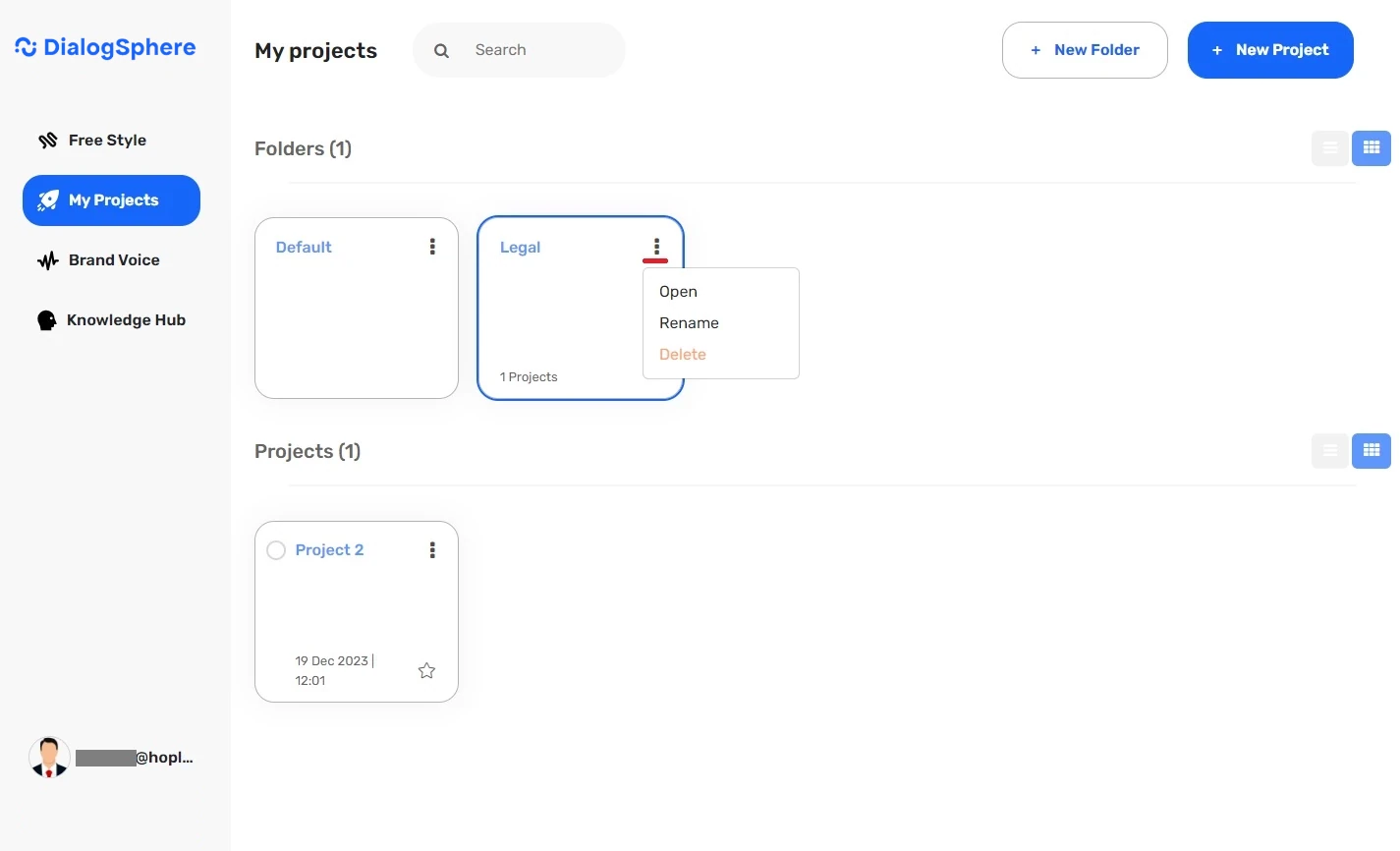
This section allows you to create a new project and also view and manage your existing projects.
Brand Voice
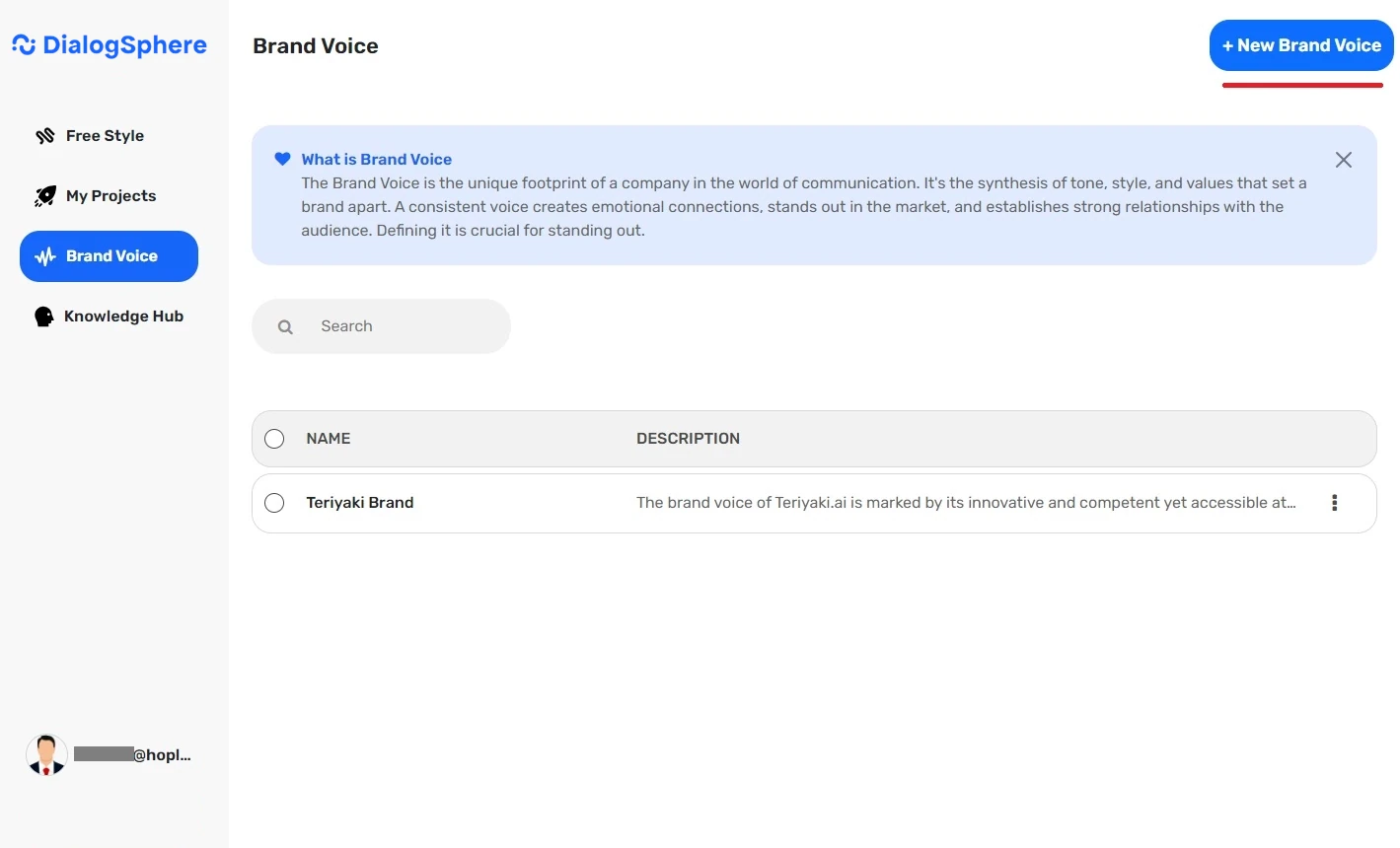
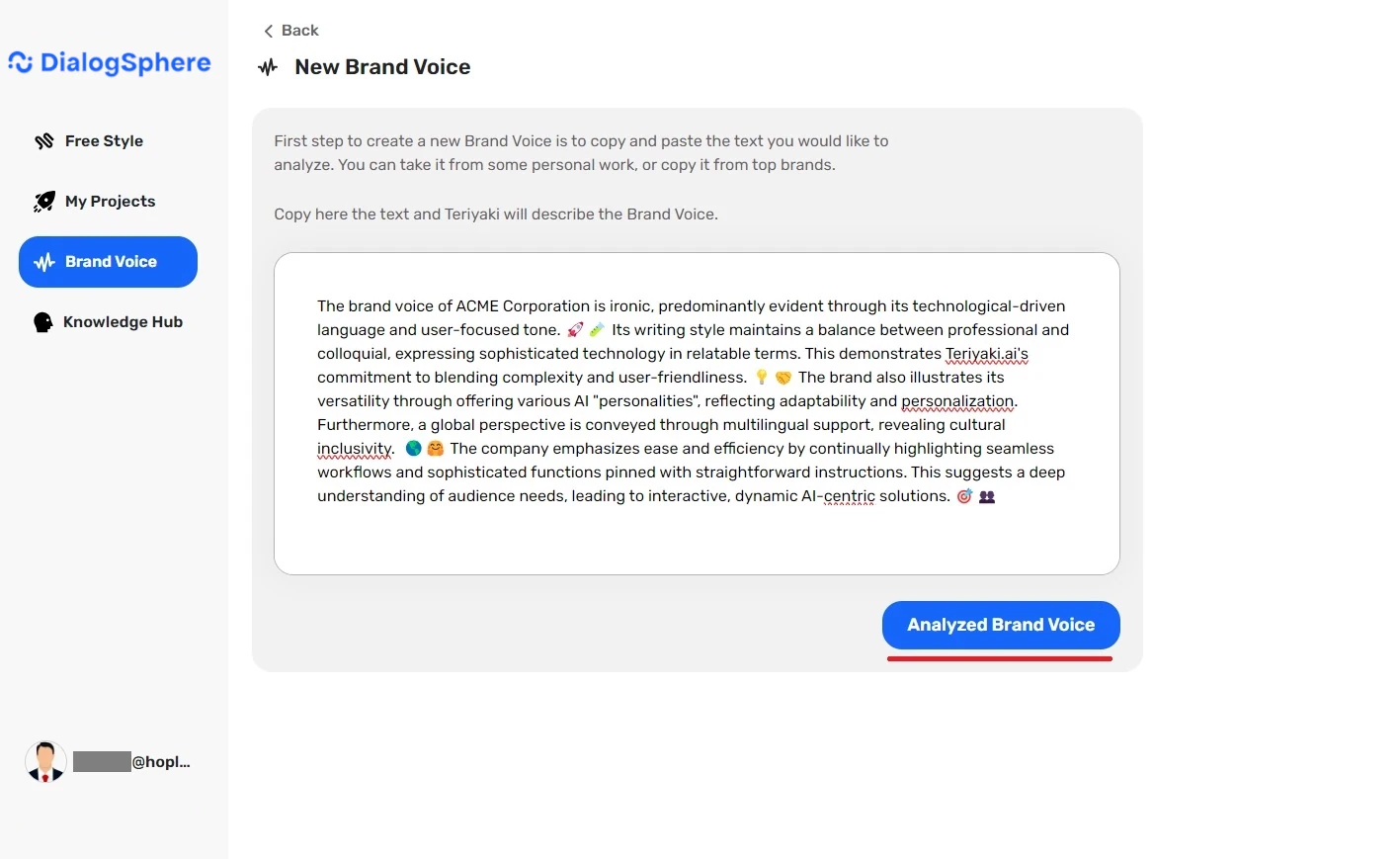
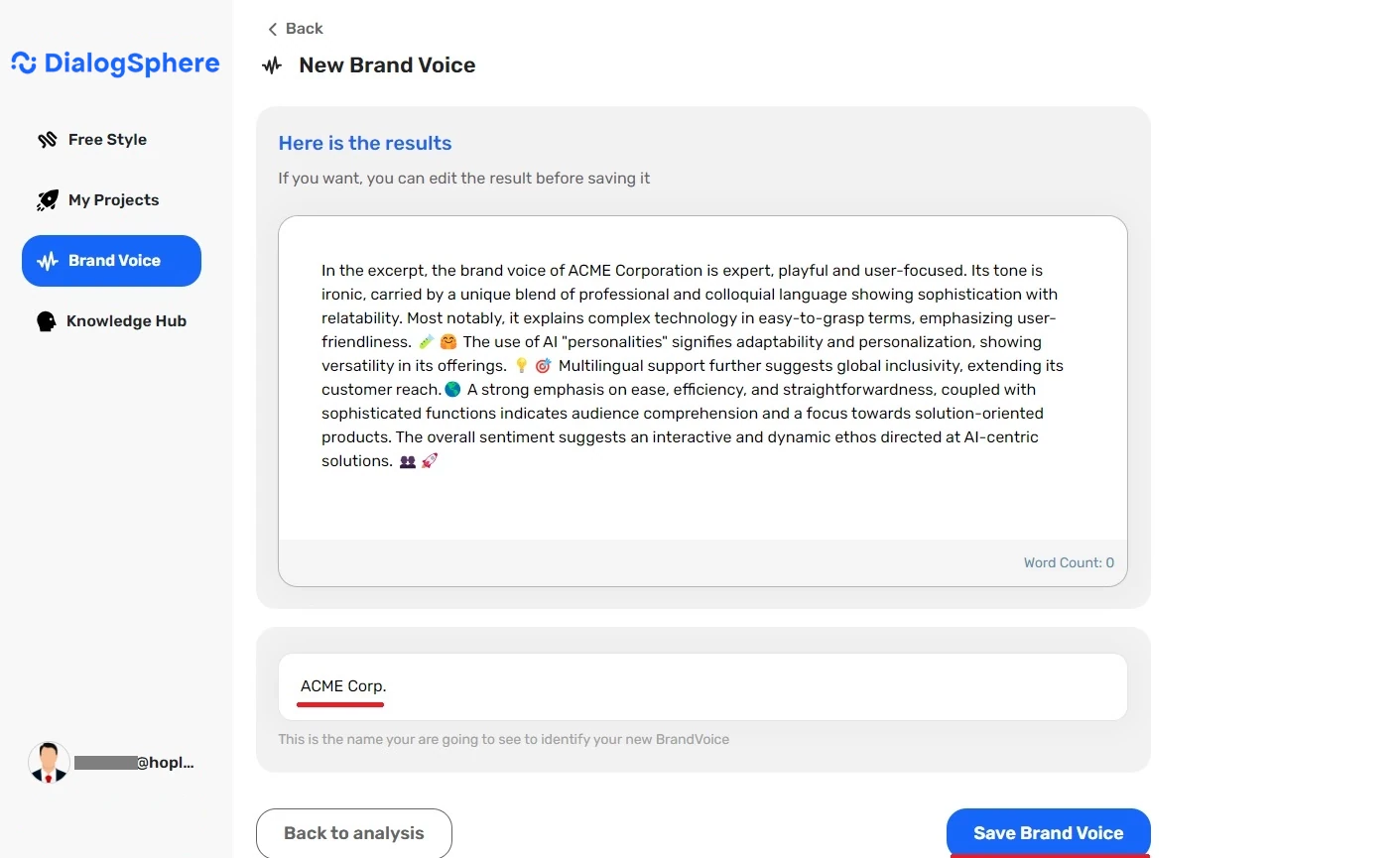
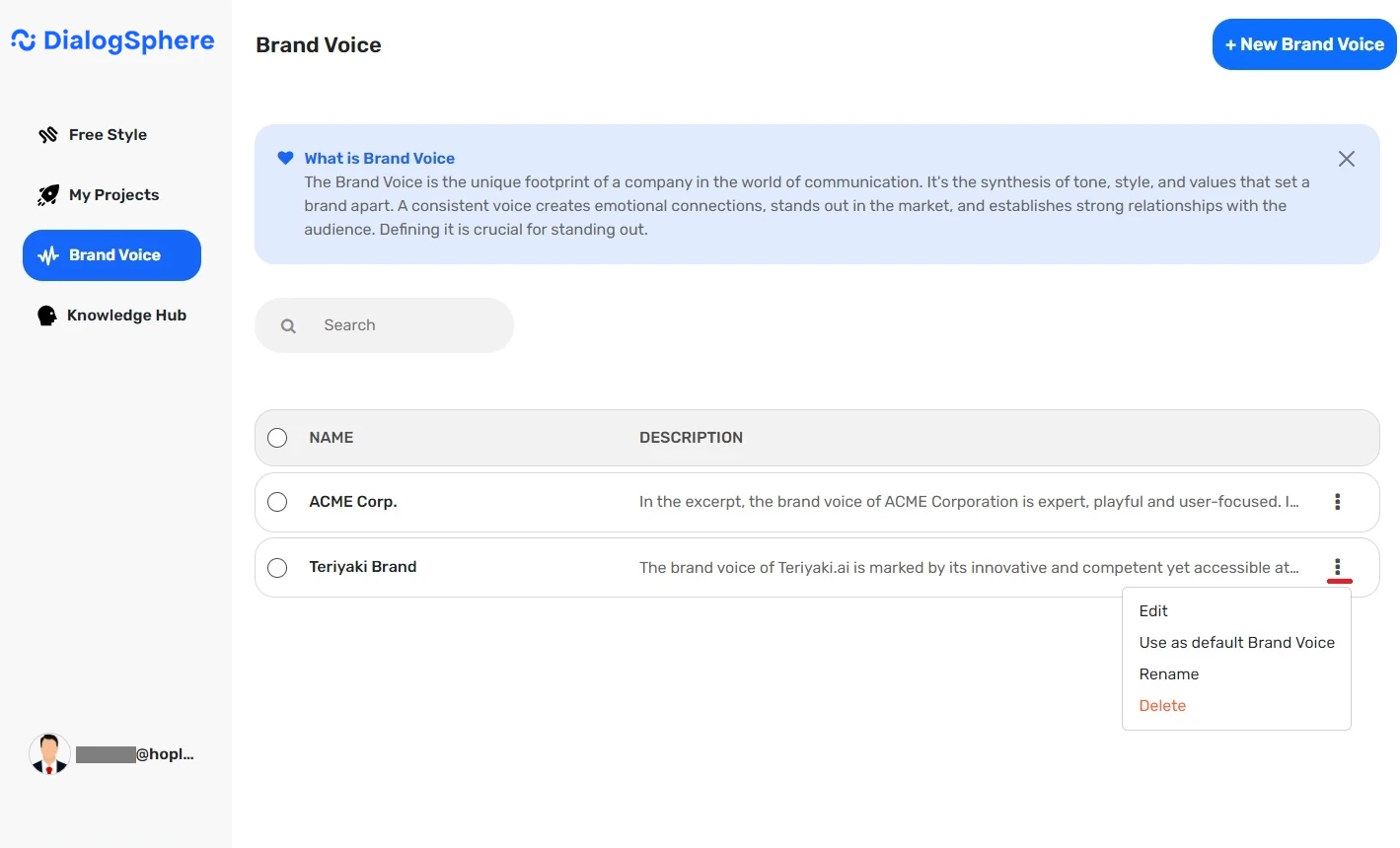
Customize your prompts with your brand’s tone of voice. Create a new “Brand Voice” for your brand or company by writing or pasting a description of the tone, style, and values that characterize your brand’s voice. Manage Brand Voice options with functionalities like editing, setting as default, renaming, and deleting.
Using Brand Voice
-
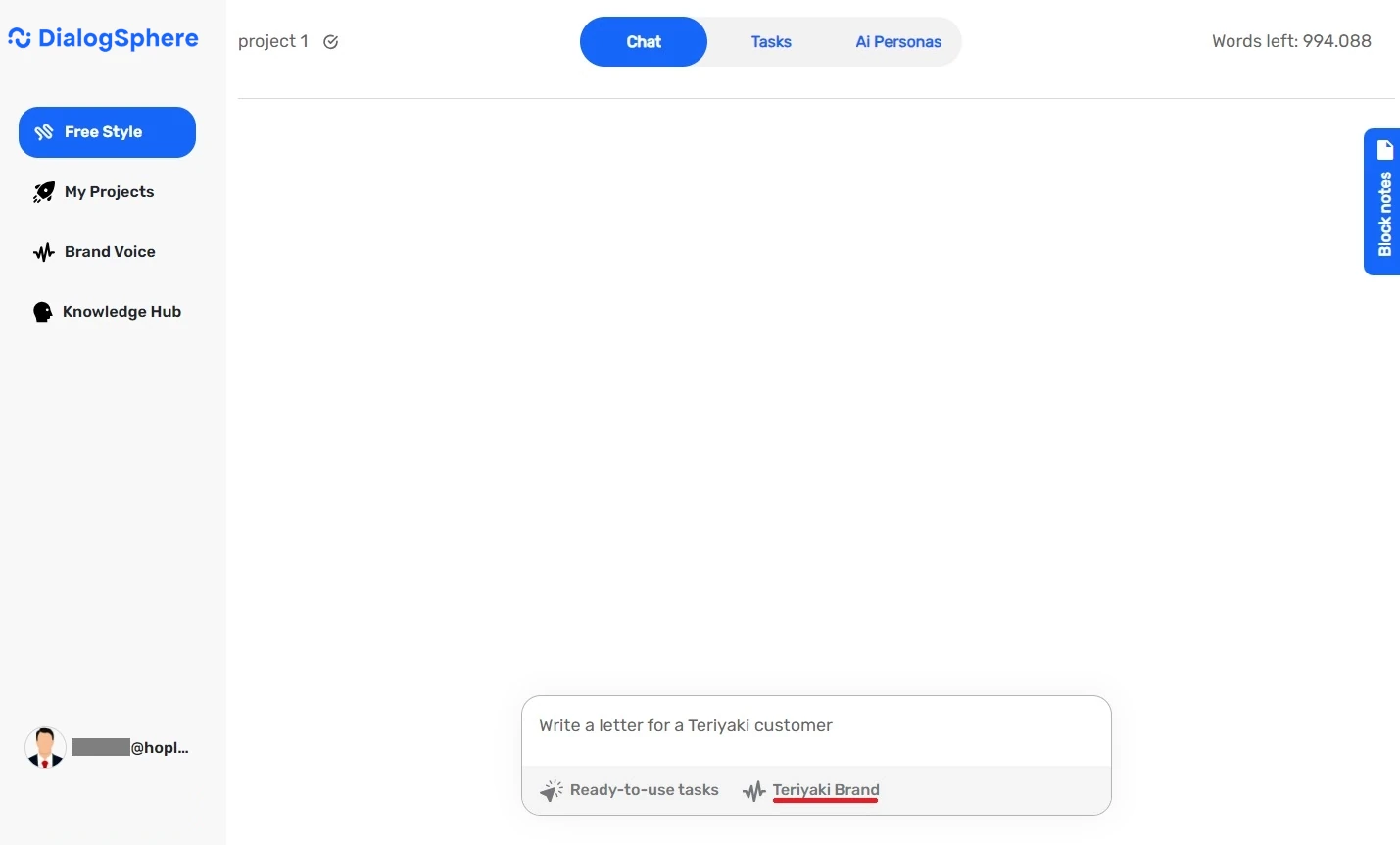
Use the Chat in Free Style > Chat and select a specific Brand Voice to create brand-specific content.
Knowledge Hub
The Knowledge Hub integrates data, brand specifications, and user preferences to streamline the content creation process. It serves as a centralized repository to enhance consistency.
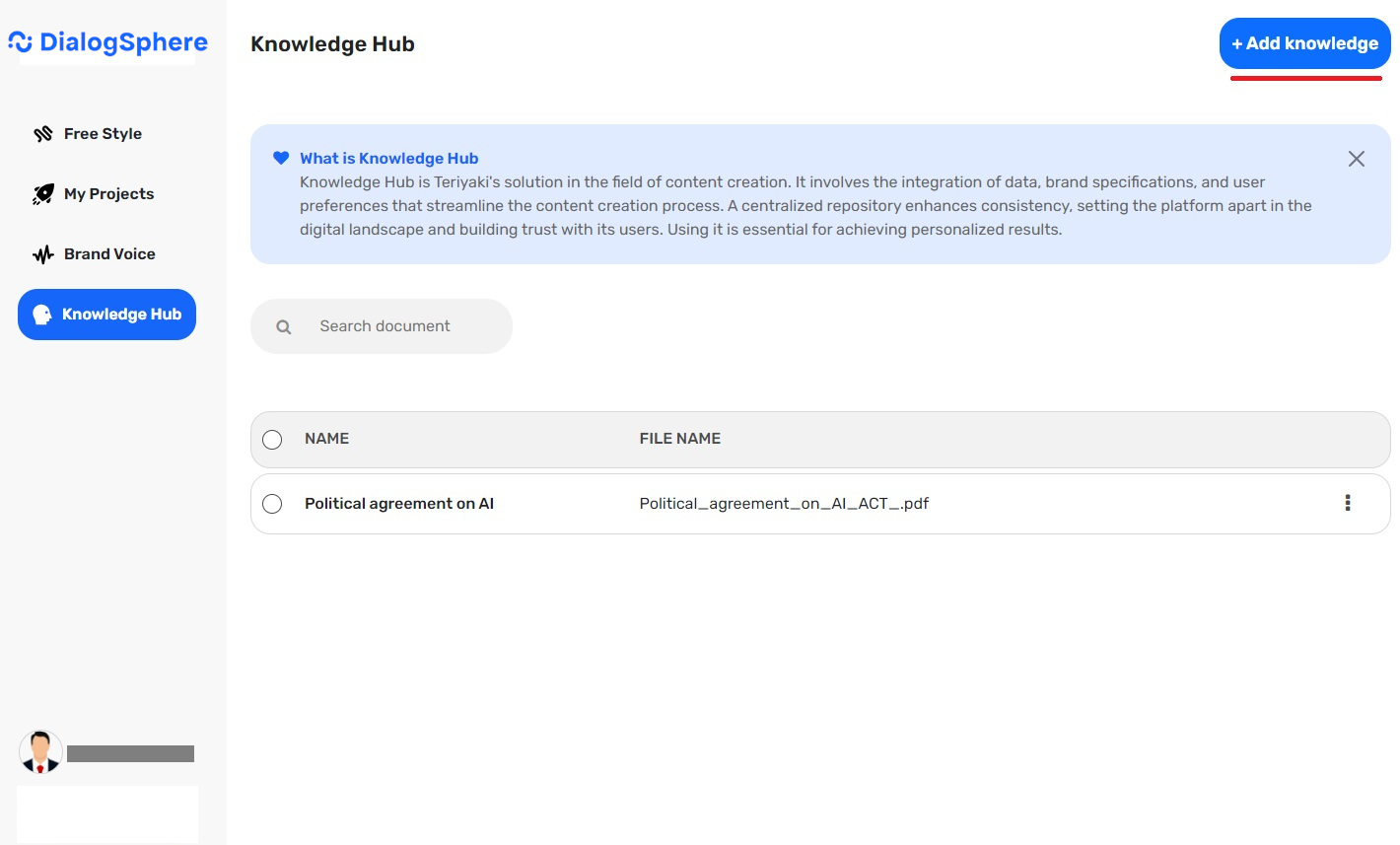
What is a Knowledge Base?
Creating a Knowledge Base
- Upload a document (.txt, .pdf) from your computer or paste content directly.
- Upload content from a URL.
- Save the content using the Save Knowledge button.
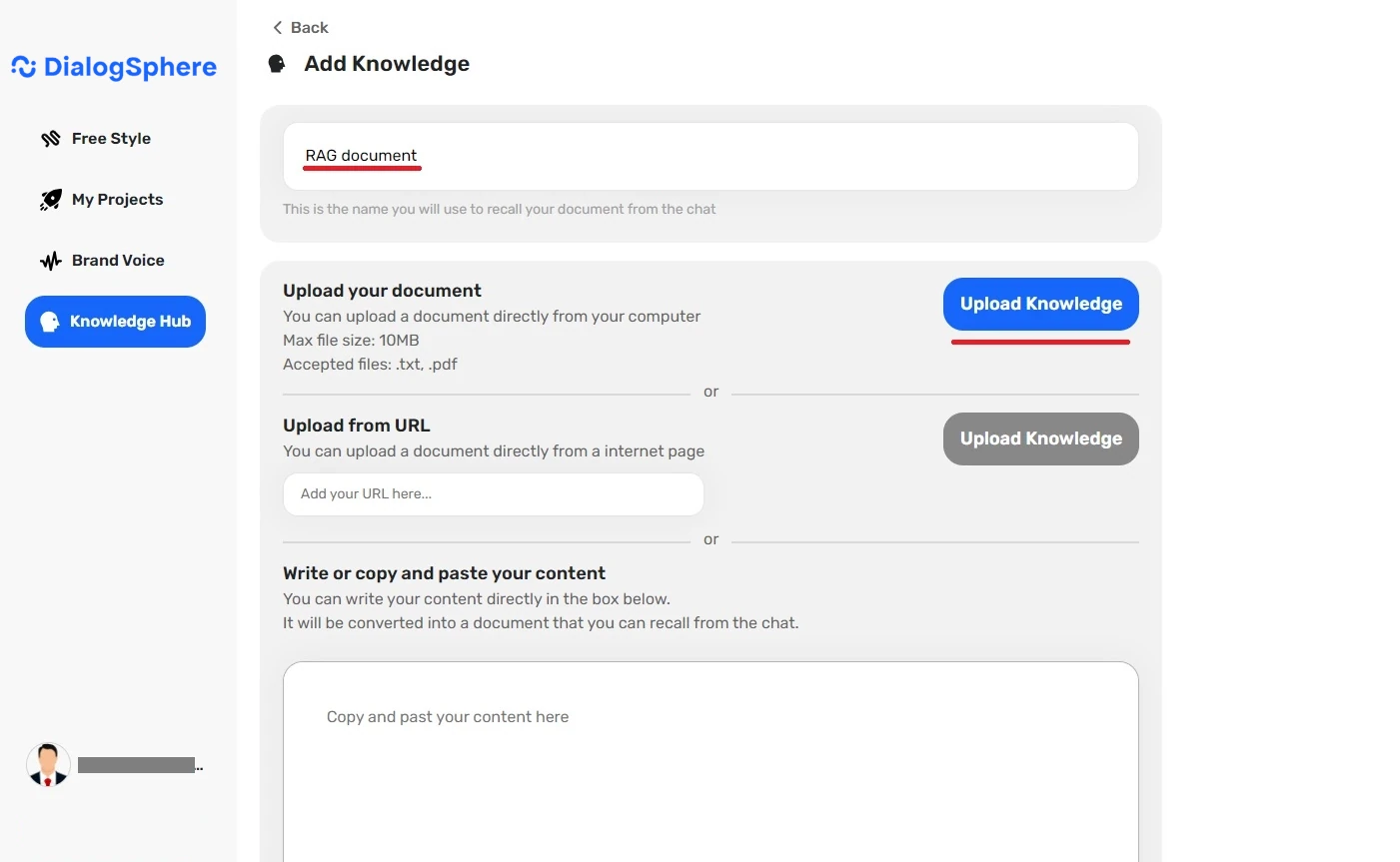
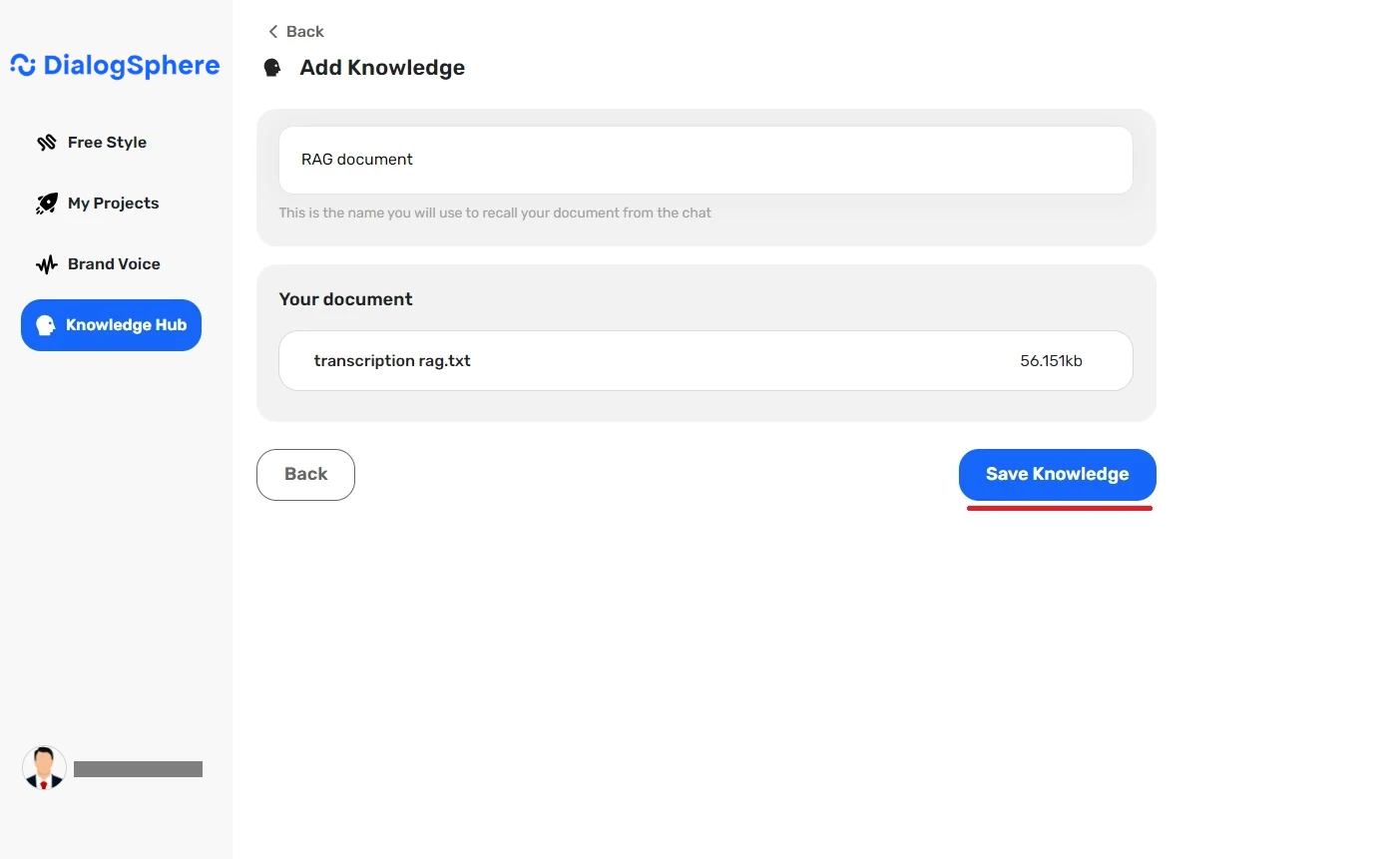
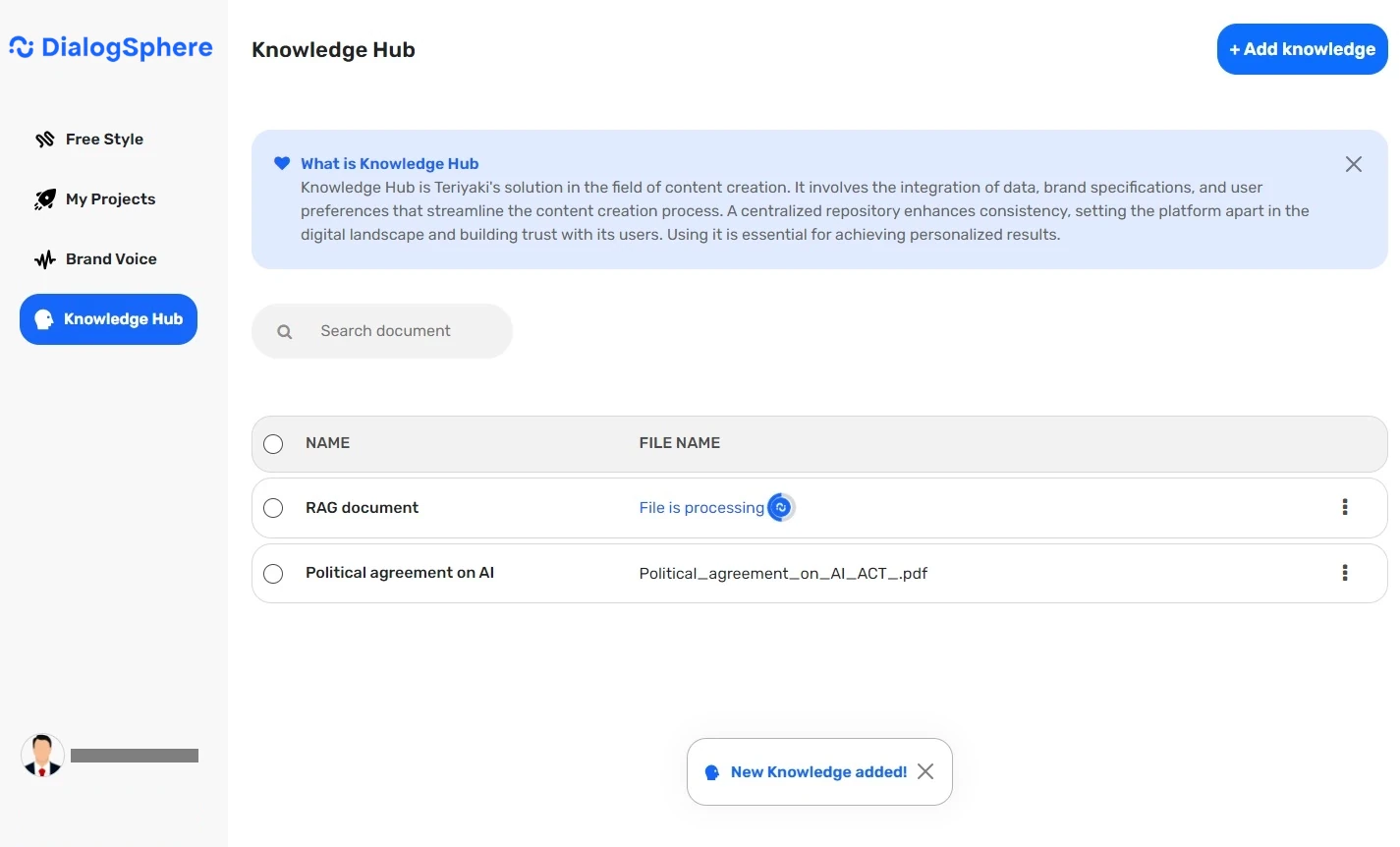
Using the Knowledge Hub
Profile
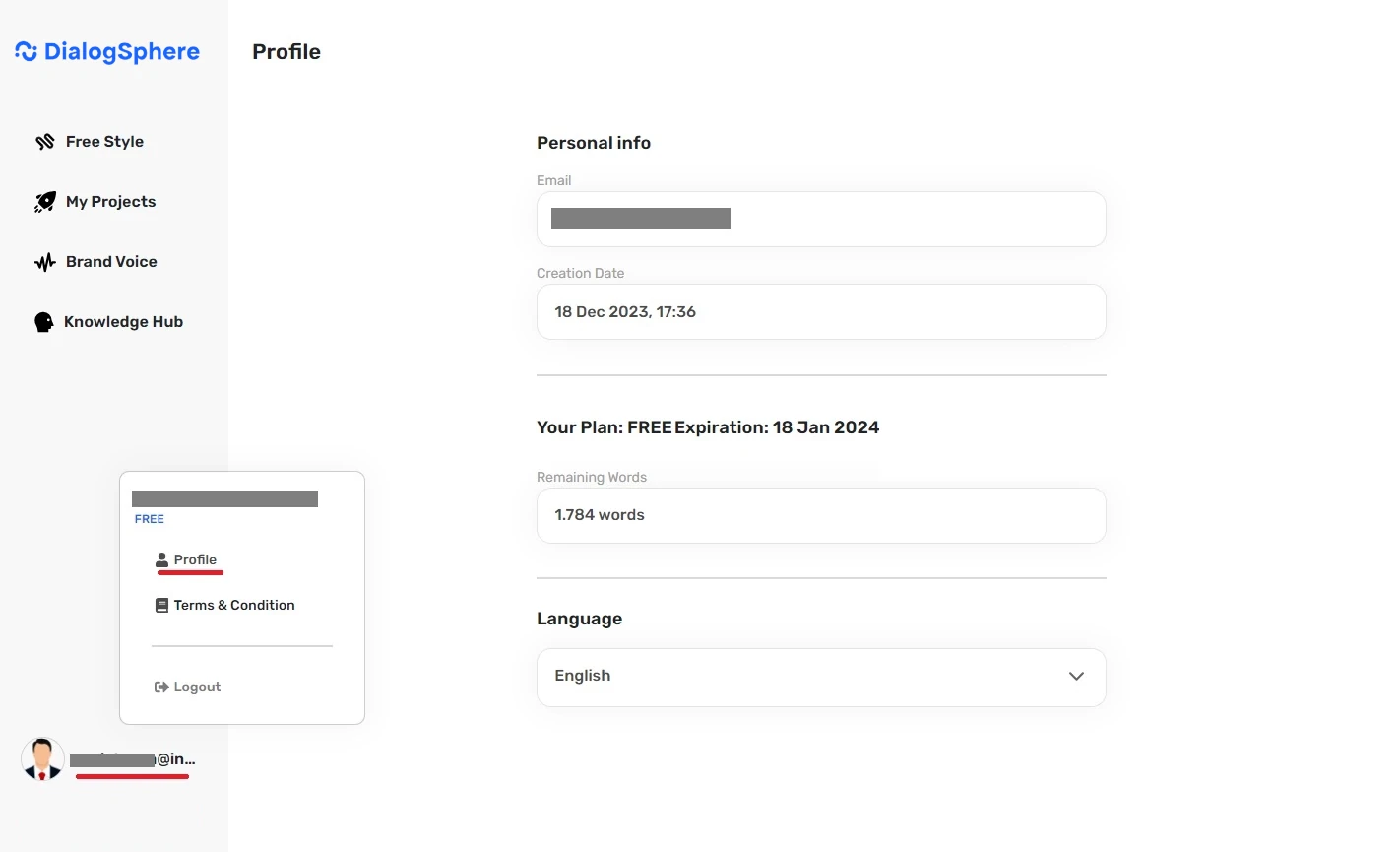
Access your Profile by clicking on your email at the bottom left. Manage your personal info, registration email, creation date, current plan, and its expiration date. Choose your preferred language from the available options (English, Italian, Arabic, German, Spanish, Estonian, Serbian, French, Greek, Hindi, Indonesian, Dutch, Portuguese, Polish, Romanian, Turkish, Japanese).

Help
Upgrade to Premium
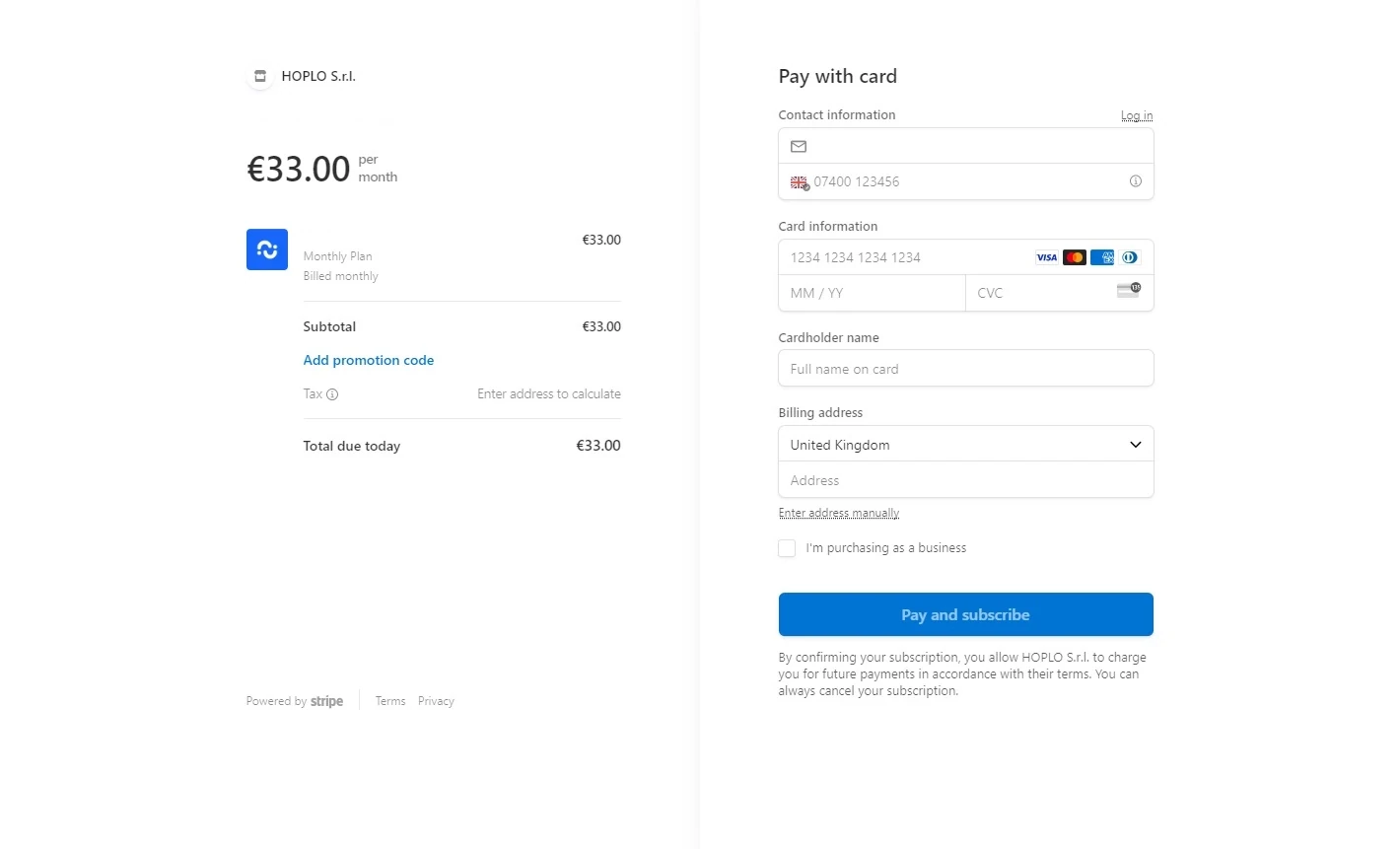
DialogSphere offers both free and premium plans. Upgrade to the Premium plan to access all features without word limits. Click here to view features and pricing and complete the purchase with Stripe.
You can always see your remaining credits, at the top right corner of the screen.

To switch to the Premium version, you can click on the Upgrade to Premium button located at the bottom left and complete the purchase with Stripe. You can also access Stripe from the Personal Profile section, which can be accessed by clicking on the email at the bottom left.